
這是歷史版本頁面 — 看 oCam 最新版本
錄螢幕不知道選哪套?oCam 能錄什麼、不能錄什麼
 oCam 428.0
資料更新 2017-11-22
閱讀約 5 分鐘
想錄一段操作畫面給同事看,或把遊戲精采片段存下來,打開電腦卻發現手邊沒有順手的工具。上網找錄影軟體,下載安裝後不是浮水印擋在正中間,就是錄到一半跳出付費提醒,要不然根本不知道怎麼設定麥克風和系統聲音。明明只是要錄個幾分鐘的畫面,卻卡在工具選擇上,連開始錄製都還沒做到。
平常大家會先試試 Windows 內建的功能,但錄出來的檔案格式選擇少,也無法同時收錄麥克風和系統音效。再不然就是用線上錄影網站,但瀏覽器權限限制多,錄高畫質影片常常卡頓或掉幀。這類螢幕錄影工具要解決的,就是「把螢幕上發生的事情變成影片檔案」這件事,而且最好操作簡單、格式選擇多、能同時處理聲音來源,讓錄製流程不要變成另一個麻煩。
01oCam 能錄什麼?
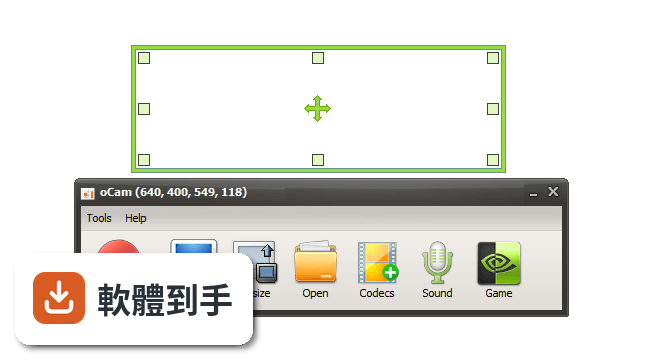
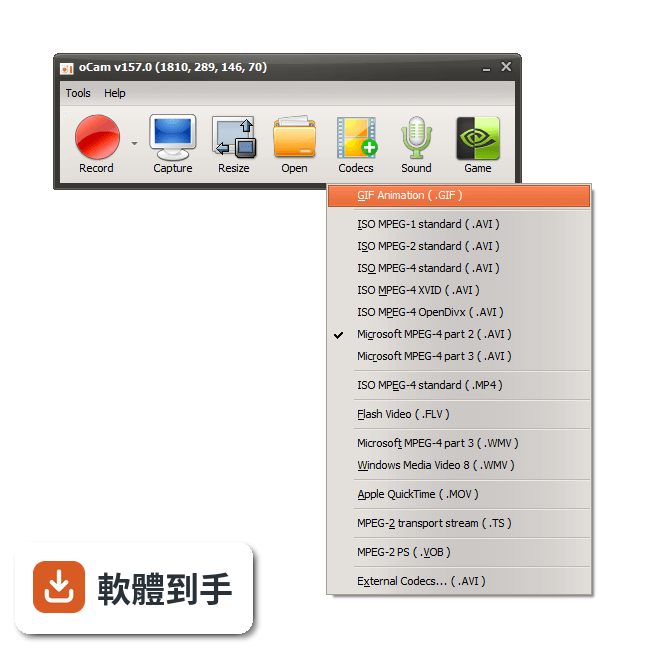
它能錄整個螢幕或指定區域,也能錄網路影片和線上遊戲畫面。錄製時可以調整影格率、解析度和音訊設定,也能同時錄系統聲音、麥克風或兩者一起收。另外有 GIF 錄製和網路攝影機錄製功能,錄出來的檔案可以輸出成 AVI、MP4、FLV、MKV、MOV、MP3、WAV 等格式。
02錄下來的影片可以剪輯嗎?
它內建基本的影片編輯工具,可以裁剪和合併錄好的片段、加上字幕和浮水印、套用影片效果。但這些功能偏陽春,適合簡單修剪和加字,如果要做到轉場、動畫、互動元素這類進階剪輯,它沒有提供,需要另外用別的剪輯軟體處理。
03可以同時錄系統聲音和麥克風嗎?
可以。它支援同時錄製系統音訊和麥克風輸入,也能只選其中一個來源。這對要錄製教學影片、旁白解說或遊戲實況的人來說很實用,不用錄完再另外對軌。要注意的是,錄製前要在音訊設定裡確認來源有正確選取,避免錄完才發現某一軌是空的。
04錄製時可以在畫面上畫重點嗎?
可以。它有即時繪圖功能,錄製過程中可以直接在螢幕上畫線、圈選、標註重點,適合教學或簡報時強調特定區域。這功能在錄完之後無法事後補上,所以要邊錄邊畫,畫錯也只能重錄或靠後製處理。
05這套軟體適合什麼樣的人用?
適合需要快速錄製螢幕畫面、不想花太多時間研究設定的使用者。它的操作介面直觀,錄製區域可以自由調整,也能自訂快捷鍵來控制開始、暫停、停止和截圖。對偶爾錄個教學影片、遊戲片段或視訊會議內容的人來說,功能已經夠用。
06免費版夠用嗎?還是要付費?
它提供免費版,但功能有限,進階功能需要付費升級。官方沒有列出免費版和付費版的具體功能差異,所以下載前建議先確認免費版是否包含你需要的錄製長度、格式選項和浮水印限制。如果只是偶爾錄個短片,免費版可能就夠了,但長期或商業使用就要考慮付費版本。
07它跟 OBS 比起來如何?
OBS Studio 是免費開源的錄影和直播軟體,功能更進階,支援多場景切換、串流直播和豐富的外掛擴充,很多遊戲實況主和內容創作者在用。oCam 的優勢是操作更簡單、介面更直覺,不需要花時間設定場景和來源。如果你只需要單純錄螢幕,oCam 比較快上手;如果要直播或複雜的錄製設定,OBS 更適合。
08介面只有英文,看不懂怎麼辦?
它的介面語系只有英文,沒有中文選項。如果英文介面會造成操作困難,可以先看官方網站上的說明文件和 FAQ,或搜尋網路上其他使用者的教學文章。另外,錄製按鈕、設定選單這類基本操作通常不難認,但進階功能如影格率、編碼設定就需要稍微查一下單字。
09這套軟體有 Mac 版嗎?
沒有。它只支援 Windows 系統,包括 Windows 11、10、8.1、8、7、Vista 和 XP。如果你用的是 Mac,這套軟體無法使用,需要找其他支援 macOS 的螢幕錄影工具,例如內建的 QuickTime Player 或其他第三方軟體。
10評分人數不多,是不是代表不好用?
它的評分是 8.6/10,但只有 55 人評分,樣本數偏少,參考價值有限。對比同類軟體,Bandicam 有 228 人評分、Screencast-O-Matic 有 140 人評分,這些評分人數較多,能提供更穩定的參考依據。建議除了看評分,也實際下載試用,確認操作流程和輸出品質是否符合需求。
下載與官方連結
oCam_v428.0.exe · 連結指向軟體原廠
版本紀錄
- 2026-01-26 oCam 550.0 9.1 MB
- 2017-11-22 oCam 428.0
這一版改了什麼
What's new in this version:
oCam 428.0
- Fixed that some PCs will not be able to record games due to OpenSharedMem error
- Internal function stabilization
oCam 426.0
- Prevent elevation of administrator privileges when running ocam
- Strengthening the security of setup app
- Internal function stabilization
oCam 421.0
- Fixed a problem where some OpenGL games could not be recorded on AMD graphics card
- Internal function stabilization
oCam 418.0
- Modified to save Mini Control Area settings
- Add a button to associate secretfolder app
- Bug fixes related to mode switching
- Chinese language file updated
- If the ocam is already running and the ocam is running, the existing ocam window is activated.
- Fixed some controls not being disabled
- Fixed point where mini-controls appear under certain circumstances
oCam 416.0
- Bug fixes related to mode switching
- Chinese language file updated
oCam 415.0
- Modified to save Mini Control Area settings
- Add a button to associate secretfolder app
oCam 414.0
- Improved DirectX 9 recording compatibility
- When GIF recording has a lot of color distribution on the screen, sometimes the result is recorded in green
- Fixed a fatal error when GIF recording is insufficient memory
- Fixed an error when the codec was automatically selected and the resolution was larger than 4K
- Codec auto selection menu to display which codec is selected
- There are two graphics cards, and osu! Runs on a high performance graphics card (NVIDIA)
- Fixed a problem where mouse cursors are visible even when mouse cursor is hidden when using desktop duplication API
- Fixed some mouse cursor related problems when mouse cursor is visible when using desktop duplication API
- When you click the sound recording tab, the recording button is changed to the recording button
- Fixed the problem that the game is not recognized when recording the game if the game is running in Windows XP compatible mode on some PCs
oCam 406.0
- Improved automatic codec selection
oCam 405.0
- Fixed the problem that when recording using Intel QuickSync encoder on certain CPU, MFX_ERR_DEVICE_FAILED error occurs and recording is interrupted in the middle.
- Improved DirectX9 recording algorithm
- Fixed that DXGI_FORMAT_B8G8R8A8_UNORM_SRGB format is not supported
- Allows you to drag the border of the recording area with the mouse
- If you use the Desktop Duplication API, you will not be able to record the newly connected monitor if you connect a new HDMI monitor after running the OCAM.
- Fixed a problem where the screen frame of the past was captured momentarily in a specific situation when recording a full screen game using the desktop duplication API in Windows 10
- Do not copy from GPU memory to GPU memory when mouse only is updated when using Desktop Duplication API on Windows 8 or later.
- If you use the Desktop Duplication API, if you have more than one graphics card, only the monitor screen of the default graphics card will be recorded.
- Fixed that recording area shortcut key does not work for regular users other than genuine users
oCam 395.0
- The hardware encoder settings disappear from the codec menu and the hardware encoder
- Changed video quality to enable setting when customized
- Codec menu will have codecs checked by default.
- Language files updated
oCam 391.0
- Added Intel QuickSync encoder (H.264)
- Fixed the point that the recording area is changed to the ready state when recording is not recorded
- If the taskbar is on the left or top, the position of the window will be canceled and corrected
oCam 382.0
- Fixed a bug where the Desktop Duplication API did not work on some PCs
- On some PCs, Fixed a bug where recording failed with message "The audio engine (shared mode or audio endpoint device (exclusive mode does not support the specified format"
- Fixes that 64-bit games are not recognized when Logitech Webcam C920 driver is installed
oCam 379.0
- Added fixed frame rate
- Monitors support 90, 180, 270 degrees rotation when using desktop duplication API
- Fixed a problem where some monitors were rotated when using the desktop duplication API, and memory ricky when the coordinates were negative.
- Add tray icon
- Added option to hide recording area
- Add recording shortcut hide shortcut
- Fixed the problem that the mini controller is visible when you check the mini-controller option in the game recording mode and press the OK button.
- Language files updated
oCam 370.0
- Fixed an error when recording BlueStack game
- Added a always show top level option
- Added a small recording control that follows the recording area for Tablet PC
- Fixed that bit rate option can not be saved in NVIDIA codec setting
- It will show the error message exactly when the recordable resolution is exceeded
oCam 366.0
- Bug fixes when using Desktop Duplication API (Desktop API)
- Fixed a problem where recording stops on some PCs
- Internal function stabilization
oCam 364.0
- Desktop Recording API (Desktop Duplication API) recording function added (speed improvement) when screen recording in Windows 8 or later
- Fixed some crashing points when recording some DirectX 9 games
- Support file size up to TB when showing recording status
- Fixed a bug where some items in the main menu were clicked while recording
- Fixed bug that can record with shortcut key when error message occurred during recording
- If the voice data is not recorded for the time recorded, fix it to not wait for that time
- Fixed an issue where the screen appeared black when the administrator privileged application or screen lock
- Language file updated
oCam 361.0
- Desktop Recording API (Desktop Duplication API) recording function added (speed improvement) when screen recording in Windows 8 or later.
- Fixed some crashing points when recording some DirectX 9 games.
- Support file size up to TB when showing recording status.
- Fixed a bug where some items in the main menu were clicked while recording.
- Fixed bug that can record with shortcut key when error message occurred during recording
- If the voice data is not recorded for the time recorded, fix it to not wait for that time
oCam 344.0
- 144 FPS support
- If NVIDIA NVENC H.264 codec is available, it will be activated as default codec
- Fixed to use less GPU memory when using Nvidia codec
- Fixed an error when clicking OK after deleting all recording area list
- Fixed point that LineBreak comes out twice in succession if you did not add the recording area when you press the resize button
- Add Hide Recording Area in Options
- When recording is checked, recording area is not displayed when recording is stopped
oCam 337.0
- Delete pop-up ad that appears each time you record
- Fixed a bug that occurs on some DirectX 8 games record
- Fixed a bug that should not drag the window area during recording
- Fixed a bug where the recording area on a dual-monitor change location
- Chinese and Ukrainian languages Updated
- Deleted main menu at the top of the bar
- The main screen UI changed in a tab button
- Bug fix menu is a menu that covers the recording area of the internal
- FPS hidden or visible shortcut is being added
- Improved recording area editor
oCam 331.0
- Additional NVIDIA HEVC codec
- Additional NVIDIA HEVC YUV 4:2:0 Lossless preset
- Additional NVIDIA HEVC YUV 4:2:0 Lossless high-performance preset
- The default setting to automatically optimize the codec
- If you can not use the codec NVENC disabled in the menu codec
- DirectX 12 record performance is greatly improved
- Fix DirectX 12 games crash on Windows 10-Redstone 1
- Added ability to manage the list of the recorded area
- Fixed recording area problem in some low-end PC
- Fixed a bug that does not function properly in certain shortcuts hotkey combination
- Fixed "Failed to Get Capture Pin" Error
- Fixed a bug that some buttons do not work at ocam minimized state
- Ukrainian language is added
oCam 313.0
- Fix specific DirectX 11 app should not be recognized
- Knox app player supports recording
- In the Options dialog box Added the Reset button to reset all settings
- Additional features to support a webcam(BGR, BGRA formats).
- Fix webcam broken out in some part of the screen
- Modify the crash problem when I use OpenGL in PCSX2(a PlayStation 2 emulator)
- Fixed a bug that is not in the output FPS DirectX 11 games on some graphics cards
- Modifying the recording area so that always at the top
- Add the option to set up a webcam format
- Arabic language is added
- Chinese Traditional language is updated
- Change software license
oCam 311.0
- Fix specific DirectX 11 app should not be recognized
- Knox app player supports recording
- In the Options dialog box Added the Reset button to reset all settings
- Additional features to support a webcam(BGR, BGRA formats)
- Fix webcam broken out in some part of the screen
- Modify the crash problem when I use OpenGL in PCSX2(a PlayStation 2 emulator)
- Fixed a bug that is not in the output FPS DirectX 11 games on some graphics cards
- Modifying the recording area so that always at the top
- Add the option to set up a webcam format
- Arabic language is added
- Change software license
oCam 294.0
- Fixed a bug that is not show FPS overlay in some PC Game Record(DirectX 10, 11)
- Changing the algorithm for automatically selecting the number of CPU cores
- The configurable hotkey combinations have been much extended
- Fixed bug when running the game lol shortcut does not work
- Add option to hide the recording area
- When you use a webcam overlay, fixed an error(Unsupports fourCC MJPG)
- It has changed the default browser to open the URL in ocam
- Remove the 3 seconds ad when you exit the program