
這是歷史版本頁面 — 看 Sibelius 最新版本
打譜排版老是手動調到崩潰?Sibelius 能幫你什麼
 Sibelius 2019.12
資料更新 2020-01-13
閱讀約 6 分鐘
寫譜寫到一半,最煩的不是音符本身,而是版面。明明只是把總譜交給團員,分譜卻要一份一份重新整理;好不容易排好一頁,加個表情記號整個版面又跑掉。你只是想讓樂譜看起來專業、乾淨,不要每次都在手動對齊和調整間距上耗掉整個晚上。
免費的陽春打譜軟體或文書軟體不是不能用,但當樂曲編制一複雜、符桿方向要改、連音線要拉、分譜要印,那些工具就開始處處卡手。這類專業打譜軟體的切入點,是把你從「排版工人」的角色裡解放出來,讓版面配置、分譜抽取、播放聆聽這些事自動化,你只需要專注在音樂本身。
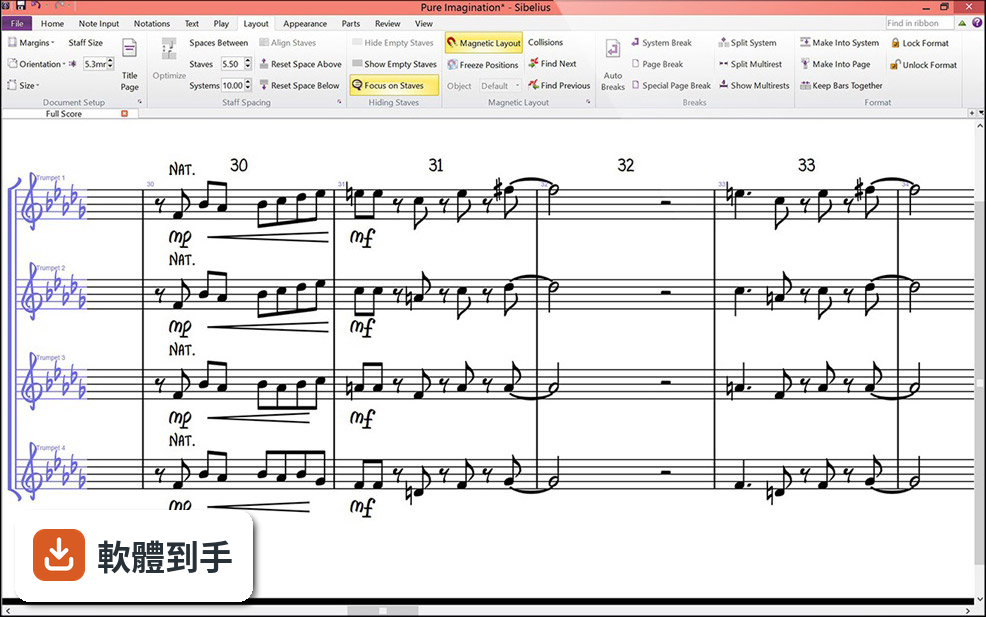
01Sibelius 到底能拿來做什麼?
它是一套專業打譜軟體,主要工作是建立、編輯和輸出高品質的樂譜。你可以用它從空白譜面開始寫總譜,輸入音符後自動產生整齊的排版,也能直接播放聆聽編曲成果。輸出方面支援 PDF、MusicXML、MIDI、MP3 和 WAV,方便你把譜面交給團員或匯入其他音樂軟體繼續處理。
02我沒有 MIDI 鍵盤,用滑鼠和電腦鍵盤輸入音符會不會很慢?
官方說明指出,除了 MIDI 鍵盤,你也可以用電腦鍵盤或滑鼠點擊譜面輸入音符。鍵盤輸入通常會比滑鼠快,因為可以透過快捷鍵指定音高和時值;滑鼠則適合偶爾修改單一音符。沒有 MIDI 裝置不會卡關,只是輸入速度會因個人熟練度而有差異。
03總譜寫完要印分譜,它會自動處理嗎?
可以。它的 Dynamic Parts 功能會在你編輯總譜時,自動同步更新個別樂器分譜。也就是說,你改總譜的任何一個音符,對應的分譜會跟著變,不需要手動一份一份重新整理。這對樂團或合奏編制來說,能省下大量重複作業的時間。
04譜面排版能不能自動調整,還是都要自己拉?
它內建 Magnetic Layout 功能,會自動對齊譜面上的元素,減少手動調整的次數。例如表情記號、力度標記、文字說明的擺放位置,系統會依預設規則幫你排好,讓版面維持專業外觀。不過複雜的樂段或特殊排版需求,還是可能需要手動微調。
05寫完的譜可以聽起來像真實樂器嗎?
它內建 Sibelius Sounds 音色庫,提供接近真實樂器的播放效果,也支援第三方虛擬樂器。你可以在寫譜過程中隨時播放聆聽,檢查和聲、配器和聲部進行是否如預期。音質會比一般電腦內建音效好很多,但和專業 DAW 的混音成果仍有差距。
06這套軟體適合初學者嗎?
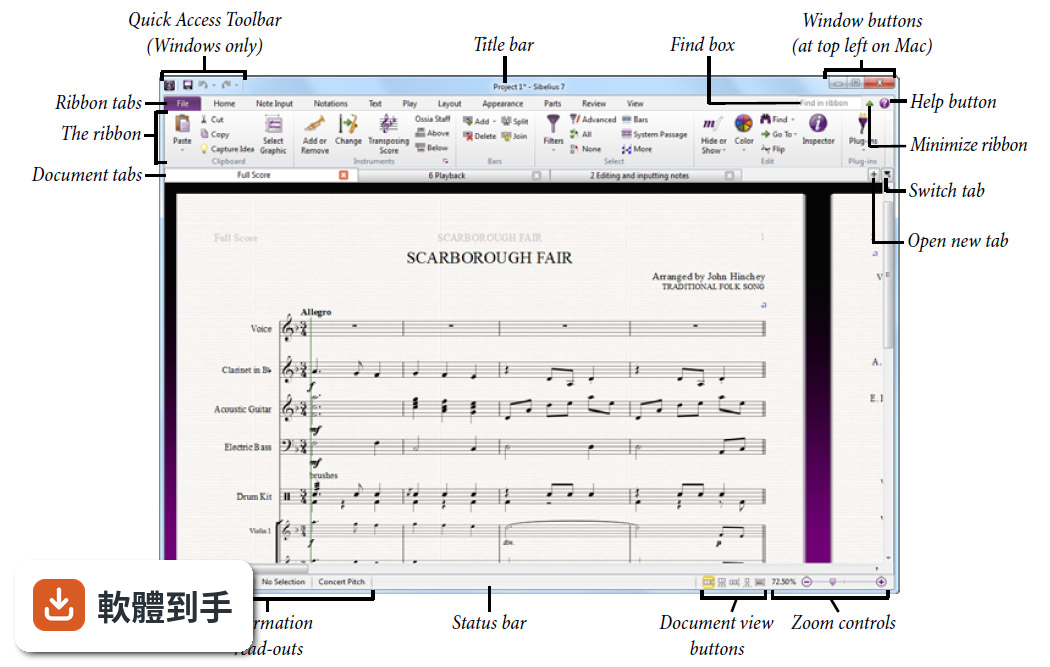
官方說明提到它提供預設範本,涵蓋多種曲風和編制,也有引導式設定精靈協助第一次使用的使用者。介面採用類似 Office 的 Ribbon 選單,工具都有標籤說明。不過整體功能龐大,初學者需要花時間熟悉操作邏輯,建議先從範本改寫開始,再逐步嘗試進階功能。
07我是專業作曲者,主要寫影視配樂,它夠用嗎?
它支援影片同步和時間碼,也提供完整的製譜功能,適合需要為影像配樂的作曲家。官方說明中明確列出 Video sync & timecode support 是 Ultimate 版本的功能,如果你需要這類工作流程,可以考慮訂閱 Ultimate 方案。另外 Arrange 工具能快速改編和聲與結構,對配樂工作有幫助。
08預算有限的話,有免費方案可以用嗎?
vid 提供 Sibelius First 免費版,包含基本打譜功能,但有限制。官方說明指出免費版在功能上比付費版精簡,例如小節數、樂器數和雲端分享數量都有上限。如果你只是寫簡單的單旋律或小型編制,免費版可以入門;但編制一大或需要進階排版,就會遇到限制。
09我習慣用 MuseScore,有必要換到這套嗎?
MuseScore 是免費開源軟體,功能也相當完整,社群活躍。Sibelius 的優勢在於 Dynamic Parts 和 Magnetic Layout 這類自動化排版功能,以及更成熟的製譜流程。如果你目前用 MuseScore 沒有遇到瓶頸,不一定需要換;但若常被分譜整理或版面調整困擾,可以試用看看再決定。
10介面只有英文,我看不懂怎麼辦?
這套軟體的介面語系是英文,沒有官方繁體中文介面。如果你對英文介面不熟悉,操作上會需要額外適應,建議先到官方網站觀看教學影片或查閱說明文件。另外,也可以考慮功能相近且支援中文的替代軟體,例如 MuseScore 有社群中文化,門檻會低一些。
11訂閱制划得來嗎?還是買斷比較好?
它提供訂閱和永久買斷兩種授權方式。訂閱方案分 Artist 和 Ultimate 兩級,Artist 每年 99 歐元,Ultimate 每年 133 歐元;永久買斷的 Ultimate Perpetual Bundle 則是一次性 533 歐元。如果你長期使用且需要完整功能,買斷可能比較划算;若只是短期專案或想先試水溫,可以按月訂閱。
12這套軟體更新頻率高嗎?會不會買了沒多久就過時?
根據現有資訊,這套軟體近 24 個月只更新了 1 次,更新頻率不算高。官方說明提到新版改善了播放音質、記譜工具和與現代作業系統的相容性,但如果你期待頻繁的功能更新,這套軟體的節奏可能不符合預期。建議先確認你需要的功能是否已經具備,再決定是否投入。
下載與官方連結
Sibelius_2019.12_Win.zip · 863 MB · 連結指向軟體原廠
版本紀錄
- 2026-07-31 Sibelius 2026.6
- 2022-12-16 Sibelius 2022.12
- 2022-11-23 Sibelius 2022.10
再看 5 筆
- 2020-01-13 Sibelius 2019.12 863 MB
- 2019-09-20 Sibelius 2019.9 983 MB
- 2019-05-17 Sibelius 2019.5 983 MB
- 2019-05-14 Sibelius 2019.4 983 MB
- 2017-11-18 Sibelius 8.7.2
這一版改了什麼
What's new in this version:
Sibelius 2019.12
- Change log not available for this version
Sibelius 2019.9
Turn MIDI into Sibelius scores fast:
- Easily create sheet music from a Pro Tools or other DAW session into fully notated scores. With expanded MIDI import features, you can omit, map, arrange, and/or merge MIDI tracks into a score on import. You can also add articulations and techniques during import to preserve the composer’s intent, helping jumpstart the instrument assignment and notation refinement process
Sibelius 2019.5
- Change log not available for this version
Sibelius 2019.4
Keep scores safe in Review mode:
- With the new locked-down, read-only Review mode, copyists, engravers, orchestrators, publishers, and teachers can have peace of mind knowing that you can’t accidentally edit or move anything out of place as you review a score. Freely navigate compositions and add comments to communicate rehearsal notes, feedback, or directions to an editor, engraver, or student. You can even annotate parts directly with a stylus or Surface Pro pen.
Spark ideas with loop playback:
- When composing, sometimes the best way to come up with parts is to improvise different melody lines, riffs, and chords over a section of music. Sibelius now enables you to select any part of your score for loop playback, so you can quickly experiment. You can even slow down the tempo during loop playback for easier rehearsal and lesson practice—ideal for students and teachers.
Find plugins fast:
- Sibelius makes composing, arranging, and engraving scores even easier through a variety of available plugins (most are free!) that can add functionality to the software or perform complex tasks for you. And now it’s easier to find the plugins you need with new search capabilities built into the Install Plug-ins dialog.
Notate and play back parts in unison:
- Got multiple instruments playing the same notes and melody lines in your score, such as an ensemble of violin or trumpet players? Instead of hearing only one voice play, Sibelius now supports playback for n players with Sibelius Sounds, NotePerformer, and other compatible sound libraries, enabling you to hear all of the richness and distinct nuances of having multiples of the same instrument part play together in unison.
Sibelius 2018.11
- We’re really excited to introduce you to the November’s release for Sibelius | Ultimate, Sibelius and Sibelius | First. All three tiers are benefiting from this far-reaching update
- This release has mainly focused on modernizing the Sibelius codebase and many of the improvements are under the hood. These manifest themselves in the way Sibelius appears on your screen and draws the score, and is now even able to make use native OS features like Full Screen on Mac, DPI scaling on Windows, and so on
- In short, Sibelius has never been faster at redrawing the score as you drag individual objects or the page around; Sibelius has also never looked so good on high-DPI screens on Windows and Retina screens on Mac. We’ve thrown in some note spacing improvements and fixes to a slew of legacy bugs too
- If you can’t wait to get stuck in, open Application Manager on your computer to download and install the update. You can also get the update from your Avid account at my.avid.com/products. This update is available to all Sibelius | First users for free as well as all those subscribing to Sibelius or Sibelius I Ultimate, and to those with a license of Sibelius with a current Software Update and Support plan. If you need to renew, head over to your account
- If you’re on an older version of Sibelius, you can upgrade from one of our resellers or on our webstore
Upgrading the Sibelius infrastructure:
- The improvements in this release touch nearly every bit of the program. This is largely due to a complete upgrade of Sibelius’s underlying infrastructure, Qt. Qt is a cross-platform development framework that enables Sibelius to run on various platforms and devices. We’ve been using this since Sibelius 7, released in 2011, so it’s high time we upgraded this to take advantage of the new capabilities. The development team have been chipping away at this herculean effort for more than 2 years, so it’s a relief to get this out into the real world . This sets us up to provide more exciting features using the very latest cutting technology
The UI:
- I’ll start with the user interface (UI), since it’s the most obvious change. Overall, it now generally looks cleaner. Although Sibelius showed nice high-resolution images and icons in previous versions, Sibelius itself didn’t natively support high-DPI and Retina screens so very little of the UI was able to take advantage of these modern displays. Now though, you’ll notice some very subtle, and some more obvious, improvements in the way Sibelius displays the text and icons in the Ribbon.
- Not all items in Sibelius have been upgraded to support the sharper icons – we still have some work to do in the Mixer, Ideas panel and so on, however the ground work has all been done now to make this much easier to implement and maintain in the future.
Sibelius is now able to take advantage of native OS features, and we’re able to make some other subtle changes such as:
- You’ll see the scroll bars on Mac are now defined by the OS, so will show automatically based on your mouse or trackpad, as you set this up in System Preferences
- The pop-up messages now animate when they appear, and have the default color based on your System
- On Windows, docked panels now have a narrower title bar so they take up less vertical space
- Tick boxes in the Preferences used to be white-on-white, making it hard to know if they were ticked or not. These are now blue with a white tick, as you’d expect. This particularly affected the Input Devices and Timeline preferences
- Across all dialogs, the headings of each section would collide with the box below This was more noticeable in the Preferences and Engraving Rules dialogs
On Windows:
- Sibelius now respects any DPI scaling, and the evidence is apparent when you start Sibelius up. Everything from the splash screen to the Mixer are now scaled and no longer blurry or disproportionate. Since we can support any DPI scaling upwards of 125%, you’ll now see sharper icons as well as a well-proportioned Ribbon, utilizing the full horizontal space to display the features
- This also works when you have multiple monitors, allowing you to have your Panels on a different screen, or even your score and parts on different screens. Sibelius will now respect per-monitor DPI scaling, allowing the windows and panels to look great on a regular monitor or even a nice 4K monitor
The Ribbon:
- In previous versions of Sibelius, the Ribbon would get pretty crowded when using high DPI scaling, from 200%+, say. Now Sibelius will lay this out and better use the whole width of the screen
Accessibility:
- In this release, we’ve paid a lot of attention to improving the way Sibelius works with screen readers. Screen readers, for those who may not know, are applications that can read and describe what is happening on the computer screen to help users who can’t see the screen well, or even at all. Both Windows and macOS come with their own built-in solutions called Narrator and VoiceOver. There are popular 3rd party solutions such as NVDA that is an open-source screen reader for Windows.
- The screen readers themselves don’t know anything about music notation, so it has been our job to generate descriptions of the score elements on the screen. As such, we have vastly improved the way screen readers read and describe what’s happening on the screen.
Sibelius will read the names of Manuscript Papers when tabbing through scores in the Quick Start, as well as read the dialog as you set up a new score. Once in the score, Sibelius will read the contents of the Ribbon as you access this with the keyboard. Since nearly all of Sibelius is keyboard accessible, it’s possible to navigate the program using keyboard shortcuts and hear what’s happening. For example:
- Pressing Tab will select the first staff object in the score and describe what the object is and where it is
- Sibelius will announce the action you do too, such as “Move” note, or “Edit” note. The description that follows is the same as when selecting objects.
- Searching Sibelius with “Find in Ribbon” will speak the results too. The keyboard shortcut to access the Find in Ribbon box is simply comma “,”. When it has keyboard focus, you’ll hear Sibelius say: “Find in Ribbon, Editing text”.
- You can then start typing to find and perform any action you need, for example: To reset the position of an object, for example, you type “reset” and Sibelius will provide a list of all features that have Reset in their name or in their description. Use the arrow keys to cycle through the results to hear them.
- Pressing Return will then apply that change – even when not using a screen reader, using ‘comma’ to access Find In Ribbon is by far the fastest way to use Sibelius!
- Each screen reader is different, and it’ll take more work on our side to gain parity with them all.
During the development of these improvements, we’ve also fixed the following legacy bugs we had with screen readers:
- Sibelius no longer crashes when closing Audio Options or Playback Devices when using NVDA
- The bar number is no longer spoken followed immediately by the succeeding bar number
Goodbye EPS, hello true black PDFs:
- Due to limitations in Qt5, we aren’t able to continue to support Encapsulated Postscript (EPS) file export. As such, Sibelius 2018.7 was the last version to support this feature. However, exporting to PDF has been improved to support greyscale, which converts to only the K color channel in CMYK.
- To use this, go to File > Export > Graphics, choose PDF and untick “include colored objects”. Alternatively, go to File > Export > PDF and, again, untick “Include colored objects”.
Note Spacing:
To improve on the note spacing features we’ve been introducing this year, we’ve fine tuned the following:
- Reset Note Spacing in the score or part no longer affects the This only affected scores using Version 3 spacing though.
- Sibelius now only respaces multi-voice bars when adding or removing notes when the “Respace multi-voice passages during note input and editing” preference is set. In recent releases, Sibelius would perform a ‘Reset Note Spacing’ under the hood during articulation and accidental editing, which was found to be too heavy handed.
Video playback:
We’ve changed the engines used in S- ibelius to sync a video (or audio file) to a score. On Windows, we now use DirectShow for QMultimedia and on Mac we’ve replaced the old 32-bit QuickTime player with AVFoundation. This change may require you to re-encode your videos to one Sibelius now supports, or install the necessary codecs to play the video
Switching between feature-sets:
- Since our release in June this year, your installation of Sibelius has had three tiers inside the single installation, so Sibelius will run the feature-set you are eligible for. This has been useful for those starting with Sibelius | First, trying out the Sibelius features then subscribing or buying the full feature of Sibelius | Ultimate. Since then, we’ve had several requests to allow you to check out the Sibelius | First features, say, to see if they are suitable for your beginner students who are starting out with their music studies. In today’s release, we’ve introduced this feature for Sibelius | Ultimate users only: simply hold down the ‘Alt’ key when Sibelius starts up and you’ll see the following dialog asking you which variant of Sibelius you’d like you run
- Clicking the version you need will run Sibelius with just those features enabled. Restarting Sibelius, without holding down ‘Alt’, will revert to running the full Sibelius | Ultimate feature set. Windows users should be aware that you need to hold down ‘Alt’ just after running Sibelius. If you hold ‘Alt’ at the same time as running the application, you will see a Properties window appear
Overall stability and bug fixes:
As with every release of Sibelius, we fix a number of bugs, both old and new. Here’s a summary of what’s included in this release:
Rhythm Dots:
- When dotted notes in multiple voices share the same pitch, Sibelius now correctly (and consistently) only shows a single dot. Previously, Sibelius would only do this for notes that were in a space and not when on a line
- The correct number of dots are now displayed on dotted chords with two or three notes
Kontakt 6 Support:
- Kontakt 6 is now recognised as a “Kontakt” device rather than a standard AU or VST plugin. This means Sibelius will now be able to automatically load sounds as it has been able to do with Kontakt 5 and earlier. So, if you have a Kontakt library, such as Virtual Drumline, old or older version of GPO/JABB, Sample Logic’s Fanfare or Rumble etc. you can now use these in the latest version of Kontakt. It’s worth noting that Kontakt 6 appears simply as “Kontakt” in your Playback Configuration
Bug fixes:
- All the “Name” fields in the Edit Instrument dialog are retained when saving and reopening a score. As such, you can now use the “Instrument change name” and “Instrument change warning name” fields independently
- Engraving Rules > Chord Symbols: Characters are now displayed correctly in the Language drop-down list on Mac
- In the Timecode and Duration dialog, the “Start video from” field now works correctly
- Note input, and dragging text objects are no longer sluggish when the Inspector is open
- The Edit Lines and Edit Symbols dialogs are now much more stable under the hood. Before, it was even possible to invoke multiple cursors on Windows and cause incorrect navigation behavior on both Windows and Mac
Plugins:
- Split Bar plug-in no longer overwrites the right hand side barline with a Normal barline
- Join Bars plug-in works properly once more when creating special barlines
Compatibility:
It’s important to be aware of the latest system requirements for the Sibelius products and this release contains the following changes:
- Full support for macOS 10.14 Mojave
- Sibelius will no longer run on Mac OS X Mavericks
Performance:
- On the whole, Sibelius is now faster than ever before. You should notice this when dragging around the score, performing edits to multiple text objects, adding slurs and articulations across several systems, and making changes at the end of large scores – all of which are vastly improved
- If you’ve made it this far down the list of improvements in this build, I’m impressed – thanks for sticking with it! This release has been a long time coming, and we’re really proud of how much has been achieved. Upgrading architecture is no mean feat, and much of the original implementation of Qt has been refactored or rewritten to bring the improved support for accessibility, high-DPI screens and so on
Sibelius 2018.6
Sibelius – A New Single Installer:
- We now have a single application called “Sibelius” that will run with the features based on the license you have activated. In the past, we’ve had separate applications for all the different flavours of Sibelius that would run with different features based on the version you had installed.
Bug Fixes:
- Empty text boxes no longer remain after removing multiple items of text with undo
- Multiple cursors are now displayed when entering expression and technique text across multiple staves
- Keyboard focus is now brought back to a text object after changing the size of it in Text > Format > Size
- As well as several improvements to grace notes, Sibelius will now retain the spacing correctly when copy and pasting passages. This saves the extra step to reset the note spacing.
- When the Quick Start is disabled, the blank score that is automatically created used Version 2 voice spacing instead of Version 3
- Several rare problems entering lyrics and chord symbols have all been resolved. This even included a crash and issues with the Undo queue
- A lyrics extender line now no longer reappears after saving and reopening a score. This would only happen if there were empty bars between two lines of music that contained lyrics.
- In rare cases, Sibelius would crash when working with text
- You can now enter multiple pieces of text or lines using a very short lasso selection
- When entering multiple hairpins onto a minim followed by a minim rest, it no longer results in a hairpin under the rest
- Deleting the first bar of a score no longer deletes the time signature:
- Continuing the improvements from April’s release, where we added the ability to delete the first bar of the score without losing your Title page and other blank pages, title, composer and other text etc.. In today’s release, the Time Signature is no longer lost. This works in such a way that it retains the Time Signature that was in the first bar of the score, as you would expect, however Sibelius will now check to see if the next bar contains a Time Signature change, and places that in the new ‘bar 1’ after the deletion. For example, if you’re deleting bars 1 to 5, and there’s a Time Signature Change in Bar 6, Sibelius will now display the Time Signature that was in bar 6, rather than retaining the initial Time Signature that was in bar 1. If you’re used to being cautious of deleting bar 1, try it now – it’s really quite liberating!
Sibelius 8.7.2
Key Signatures and Instrument Changes:
- This is an area we spent a lot of time on getting right. We’d like to thank our tireless beta testers for their feedback while we worked on improving this area of the program. Many of you will know that entering Instrument Changes would always come with a level of cleanup. Any change in key signature would be too close to the barline, and on the wrong side too. In the part, they would split the multirest and it would take a number of steps to get this right. In addition to this, if a Key Signature change would happen at the same time, you’d get two key signatures appearing at the same time. With Sibelius 8.7.2, this is now all handled for you
Barlines:
Special barlines, which are accessed from Notations > Common > Barline, each have special properties. In previous versions, they would all split multirests, which was OK if you knew that was going to happen. However, many a Sibelius user has been confused to see a multirest split and not known why. In Sibelius 8.7.2 we have changed the behavior of some of these barlines:
- Start repeat – split barlines
- End Repeat – split barlines
- Double – split barlines
- Dashed – split barlines
- Final – split barlines
- Invisible – do not split barlines
- Normal – do not split barlines
- Tick – do not split barlines
- Short – do not split barlines
- Between Staves – do not split barlines
- When opening older scores
- Opening older scores in 8.7.2 that contain any of the barlines in the second list above now open with a ‘Split multirest’ above them in each part. This retains the layout of the score, and also gives you a useful visual indicator to show why the multirest is splitting. To snap this back into a single multirest, simply select the split multirest and tap delete.
- Sibelius | Cloud Sharing
- Accepting the Terms and Conditions for the first time now knows if you’ve just opened the Dashboard or clicked ‘Share’—if the latter, it no longer just opens the Dashboard but continues to share the score
- When sharing an unsaved score, the “Uploading Score” message only appears after you’ve saved the score
- When extracting parts, the files are now given their own FileID, allowing you to share these independently from the full score
- The Push button is now enabled and disabled more reliably
General improvements in Sibelius:
Workflow:
- Non-magnetic gliss and port lines are now red when they are selected—this matches the colour of non-magnetic slurs
- Text along lines is now horizontal once more. It can still follow the angle of the line when you specify a value to move the text up by a number of spaces (found in Edit Lines > Centered Text)
- A long-standing issue, where you’d lose title pages and other blank pages when changing time signature at the beginning of the score, has been fixed
- Using the left/right arrow keys to navigate through the selection no longer causes the selection to skip into another voice when you pass an object in all voices, like a chord symbol, or staff-attached symbol
- In some cases, entering notes into a bar directly after an Instrument Change would add them in the next bar instead. This dates back a really long time but you’ll now find notes go into the bar that you intend them go into
- Adding Split Multirests are now added to the undo queue
- Sibelius would sometimes move the score when performing an undo action. This no longer happens
UI and Documentation:
- When exporting a PDF, the wildcards are now correct in French and German languages
- The Lines section of the Inspector is now localized
- Text is no longer cut off in the Quick Start > Learn tab for all languages except Japanese and Chinese (Mac only)
- When importing Ideas, the import button was sometimes cut off—the dialog has been extended to show this button
- Several improvements to the Manuscript plug-in language documentation have been made
General reliability:
- When pasting Lyrics, the Undo/Redo queue no longer gets out of sync. Previously, it was possible to repeat a lyric rather than paste the next one in the clipboard
- Sibelius no longer crashes if you quit while still inputting text (Mac only)
- A score that containing $NumPages wildcard, if exported and opened in Sibelius 7.5 will crash—we’ve found this happens due to a bug in Sibelius 7.5-8.5. We fixed this back in March as part of the Sibelius 8.6 and Cloud Publishing engine development (where we found the Cloud Publishing engine would hang on some scores)
- Sibelius no longer starts up slowly when “Avid Application Manager Helper” is not running
- As part of our regular monitoring of crash reports that come in, we’ve found several reports where RoboForm would cause a crash due the way Sibelius handles text. We will address this in a future update but the advice for now is to disable RoboForm
Music XML:
- In response to any “Tempo Scale” effect, Sibelius now removes the metronome metric modulation but keeps the text indications. The XML output from Sibelius is now valid, and we’ll look into adding the tempo scale in the future
- Sibelius now opens the newer MusicXML 3.1 files with the .musicxml file extension
Sibelius 8.7.0
Sharing Scores: New UI and workflow in Sibelius:
- Sibelius 8.7 introduces a set of new buttons in the Ribbon interface that provides you with integrated controls for sharing and managing your scores. When you click Share, your score is sent to the cloud for processing and a link to your score is automatically copied to your clipboard—and that’s it! No more exporting separate .html and .sib files, installing a plug-in, restarting your browser or even finding a computer with a browser that’ll work. Scores shared using Sibelius | Cloud Sharing will work in any browser, on any device.
Sharing a score online:
- How does it work? When you press Share, Sibelius sends the score to your cloud account on Avid’s MediaCentral Platform (running on Microsoft Azure), which then starts processing it. The first thing that comes back is the URL to be shared. By the time you go to that URL, there’ll be little or no wait until the score has been rendered by our Cloud Publishing engine. The larger and longer your score is, the longer you’ll have to wait for it to be processed. As you can see, the dropdown presents additional options to embed code into web pages and blogs (more on this later), and the option to quickly stop sharing the score. Clicking Stop sharing stops scores from being viewed online immediately. You can share the score again, but clicking Share again will generate a new sharing URL.
Updating changes to the score:
- What if you want to make changes to the score and share those? No problem! Pushing changes is simple. Once you’re ready to update a score that has already been shared, simply make the edits and click the Push button. You will be asked if you want to save changes to the score and push up the latest version. There’s no need to re-share the score, as the existing URL will continue to be used for that score. To see the changes reflected in the Viewer, simply refresh the page in your browser and it will automatically display the updated score. This eliminates the cumbersome workflow of exporting new pdf’s and mp3’s every time you edit your score, and significantly streamlines essential reviewing and collaboration workflows that are the lifeblood of most composers and arrangers.
Managing your shared scores:
- Sibelius | Cloud Sharing also includes a new Dashboard for managing your shared scores. The Dashboard lists all the scores you’ve previously shared, allowing you to sort, search for, and manage whether a score is shared or not. It’s also extremely useful for getting a score’s shared URL without having to open it again in Sibelius.
Viewing and using shared scores:
The URLs are a link to your scores in your cloud account. You can freely share these with your friends, colleagues, students, teachers—anyone. How people view your shared scores on different platforms and devices will vary:
In a web browser:
- The Cloud Publishing engine renders the scores using modern web technology (JavaScript and HTML5). Anyone you send the URL to (via email, text, etc.) can easily view and play your your score using any web browser.
Via social media and chat apps:
- To share a score on a social media site, you simply paste in the sharing URL you are given by Sibelius. When posting into Twitter, Facebook, WhatsApp, Skype, and other media sites and chat apps, you’ll see a nice preview of the music embedded directly in the post. This is drawn from the metadata from the Score Info dialog in Sibelius which we’ve made available as part of the Viewer.
Embedded into web pages:
- Sharing URL’s is obviously a great way to share your music, but for those of you who’d like to showcase your music on websites, or even build interactive learning resources, Sibelius helps you do this as well. Either from the Dashboard or from the Share dropdown, Sibelius provides you with embed code that you can use to easily add your score for these applications. It looks something like this: Simply insert this code into your html page and the music appears when the page is rendered. We’ve tested several sites including WordPress, Canvas, and Atlassian, and they all work as expected.
The Sibelius Viewer:
- The Viewer, which you may have seen before if you frequent the many sheet music publisher websites that use Sibelius | Cloud Publishing (including greatscores.com, musichorizon.com, virtualsheetmusic.com, musicroom.com, and others), is made up of individual SVGs for the pages of music, plus an MP3 for playback and a lot of metadata to tell the viewer where to place the playback line etc. All this, combined with some clever Javascript gives you an elegant Viewer that allows you to view, play back, and paginate through the score.
The sound:
- The sounds you hear are an MP3 we generate in the cloud when processing the score. Our Cloud Publishing engine is a “headless” version of Sibelius that processes and renders the score, much like the one you have in Sibelius, along with an optimized version of the Sibelius Sounds library. As we need to quickly load this library in the cloud, these are the exact same sounds that are used in Sibelius, but with stripped down velocity layers and samples spread across multiple notes. The good news it that this optimized sound library retains nearly all the instruments and playing articulations, resulting in a very close rendition of what you’d hear with the full Sibelius Sounds library in Sibelius. This is a significant improvement over the Scorch plug-in, which relied on local onboard MIDI sounds.
The look:
- What you’ll also notice is that your shared scores look just like they do in Sibelius thanks again to the Cloud Publishing engine. This means that anyone reviewing your score will see it just as you intended, with superior resolution as you zoom in and out.
How do I get Sibelius | Cloud Sharing:
- Sibelius | Cloud Sharing is part of the Version 8.7 software update and available at no charge to anyone with a current Sibelius or Sibelius | First subscription or upgrade plan (as well as all new customers)
- Note that Sibelius and Sibelius | First have slightly different sharing entitlements. Sibelius | First enables you to share up to 20 scores at any one time, while Sibelius allows you to share an unlimited number of scores up to 1GB of storage on our cloud platform. All the assets we store are compressed, so you’ll need to share a good number of large scores before reaching this limit
- If your subscription or upgrade plan lapses, the scores that you’ve shared will remain available online where they have been posted, but you will not be able to share any new scores until you renew your support contract or subscription. The Dashboard will be available regardless, so you would still be able to share your URLs and retrieve embed code. As soon as the subscription or upgrade plan is renewed, you will again be able to share new scores
Other updates included in Sibelius 8.7:
In addition to the new Sibelius | Cloud Sharing features, the Sibelius 8.7 software update also includes a good set of useful improvements, including:
Finding and filtering:
- When filtering for articulations in Advanced Filter, the filter now applies to just those you had intended to be selected or deselected
- When using Find/Find Next, the notehead type search works correctly
- Color function now works when noteheads are selected by pitch using Advanced Filter
Gliss lines and slides:
- Slides now work properly in all non-English localizations
- The Lines section of the Inspector is now correctly localized
- When exporting to previous versions of Sibelius, gliss lines are now positioned in the same place vertically—Magnetic Layout for these lines is switched off to allow them to stay close to notes and not get moved further away
General bug fixes and performance improvements:
- Legato passages play back correctly once more
- Score redraw is no longer slow to respond with jpegs at the start of a score
- Making a change in one bar no longer resets the spacing in a bar on another system
- Space after key sig warning is no longer too wide compared to Sibelius 8.3 and earlier
- Sibelius no longer crashes after using user batch plug-ins from Edit Plug-ins window
- When Sibelius starts for the first time, the Activate button now opens the Account page in Application Manager—this will prompt the user to log in, which will trigger an auto-activation of Sibelius, therefore removing the steps of finding license numbers and entering them in manually—it also ensures that you are logged in already to make the sharing of music go smoothly
- In some cases, Sibelius would crash when using sample rates of 96kHz or 192kHz after exporting audio—this no longer happens
- The borders around buttons in the Inspector are now easier on the eye
- Checking the “Use on single notes” checkbox in Engraving Rules > Ties 2 now persists after closing the Engraving Rules dialog
- “Change instrument names at start of system after instrument changes” in Engraving Rules > Instruments now has the correct German translation
- Sibelius is now generally more snappy
Sibelius 8.6.1
- Change log not available for this version
Sibelius 8.5.0
- Change log not available for this version