
這是歷史版本頁面 — 看 Windows Firewall Control 最新版本
想管住程式偷偷連網,Windows Firewall Control 能做什麼
 Windows Firewall Control 5.0.1.19
資料更新 2017-11-29
閱讀約 6 分鐘
你裝了某個軟體,結果它三不五時就在背景偷偷連網,上傳下載不知道傳了什麼。你想擋掉它,打開 Windows 內建防火牆一看,一堆規則和進階設定,根本不知道從哪裡下手。你只是想讓某個程式不能上網,為什麼要搞得像考網路管理證照?
其實 Windows 內建防火牆一直都有「封鎖特定程式連網」的功能,只是它把設定藏在控制台深處,介面又老又難懂,一般人根本不會去碰。於是就有人做了這種「前端控制面板」,把防火牆的開關和規則變成一個小視窗、幾顆按鈕,讓你不必去翻那些複雜設定,就能直接控制哪個程式可以連出去、哪個不行。
01Windows Firewall Control 到底是做什麼用的?
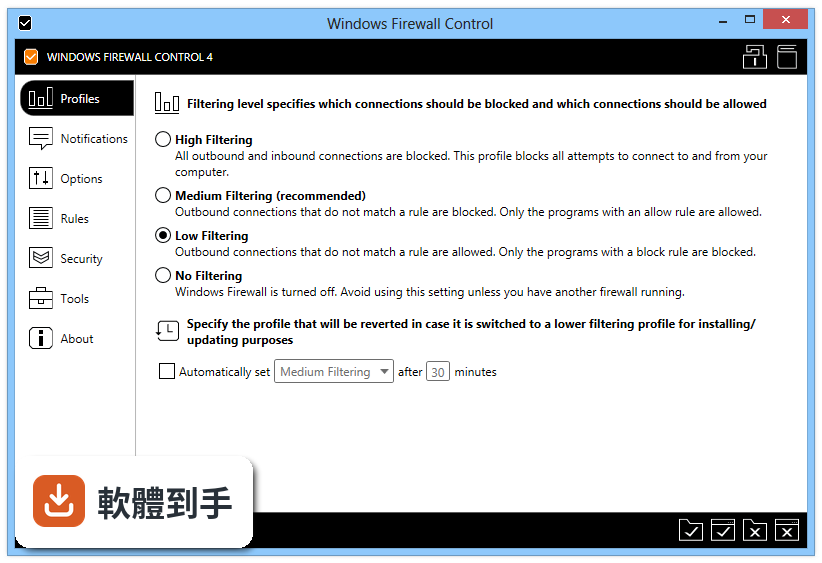
它是拿來控制 Windows 內建防火牆的工具,本身不做封包過濾,而是把 Windows 防火牆的規則變成比較好操作的介面。裝了之後,系統列會多一個小圖示,點開就能切換過濾模式、看連線紀錄、建立規則,不用再進控制台慢慢找。它需要 Windows 防火牆服務有開啟才能運作,也要裝 .NET Framework 4.5 以上版本。
02它說的四種過濾模式,實際用起來差在哪?
四種模式差在「沒被規則允許的連線」怎麼處理。高過濾是全部連線都擋,進出都不行;中過濾是只允許你放行的程式連出去,沒在規則裡的都擋;低過濾是沒規則的連線預設放行,但你還是可以手動擋掉特定程式;不過濾就是直接把 Windows 防火牆關掉,官方不建議用,除非你另外裝了別的防火牆。一般日常用,中過濾比較平衡。
03能不能看到哪個程式正在連網?
可以。它有一個 Connections Log(連線紀錄),會列出最近的網路活動,你可以從裡面看到哪個程式在什麼時間連到哪裡。這個功能在未註冊版本裡,通知系統是關掉的,但連線紀錄本身能不能完整使用,官方文件沒有細說,需要自己裝來確認。
04我想封鎖某個特定程式連網,要怎麼做?
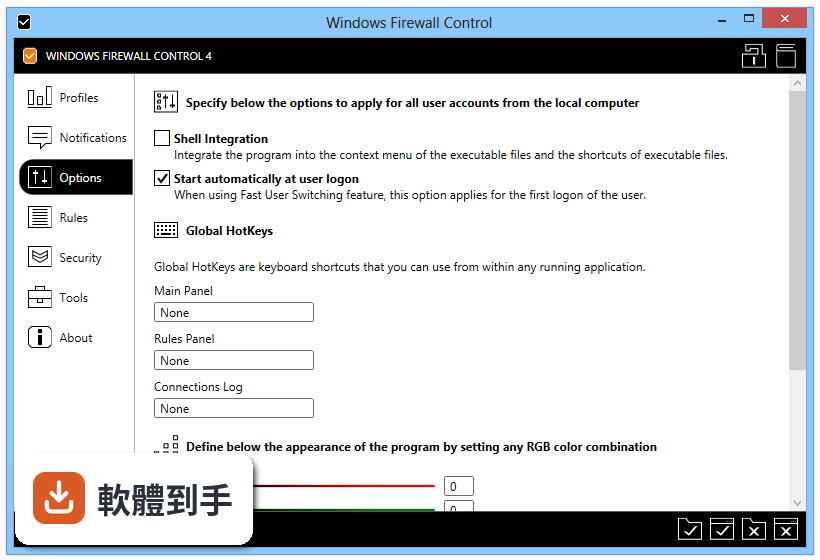
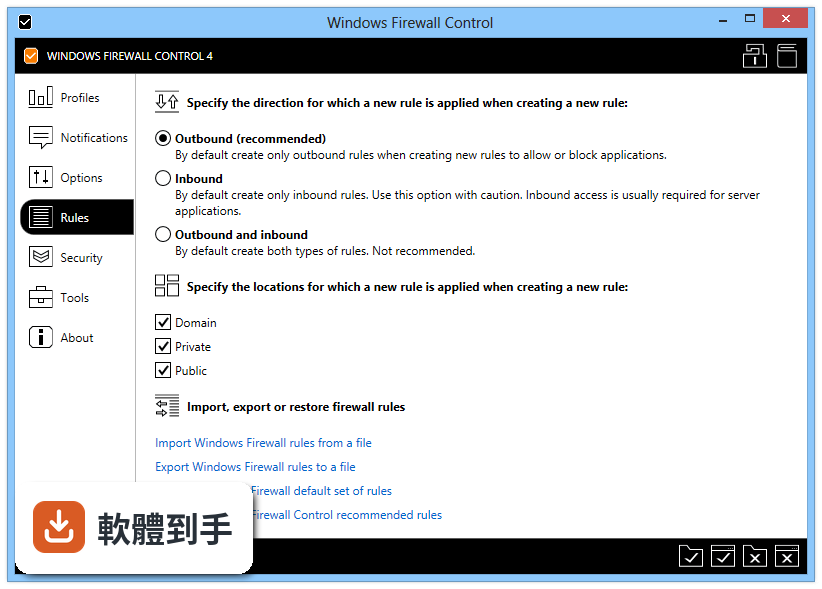
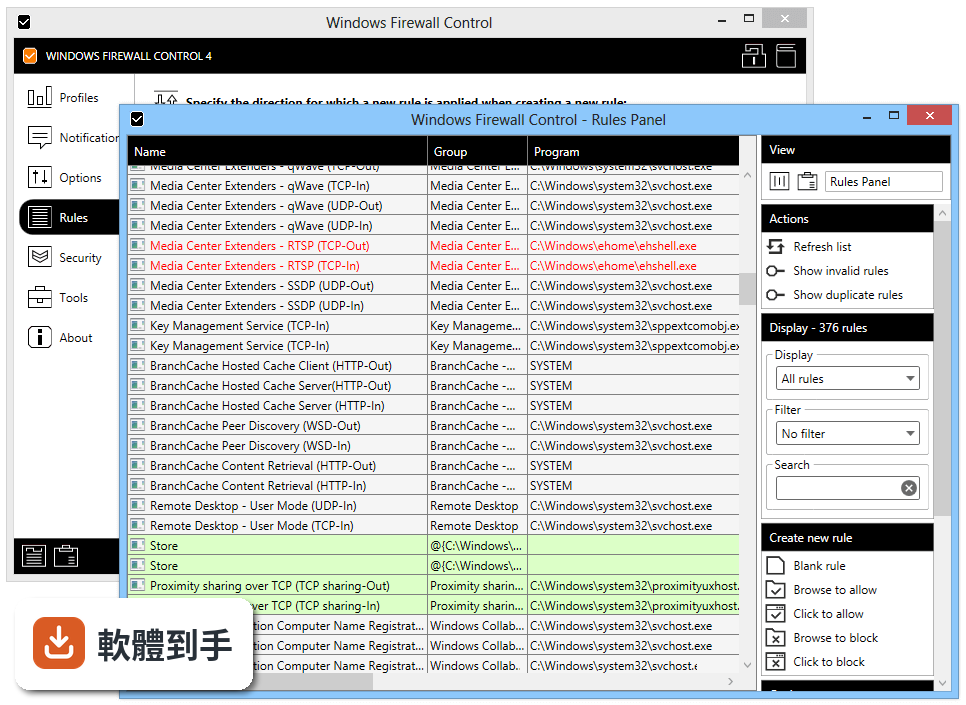
在 Rules Panel(規則面板)裡可以建立規則,指定哪個程式、哪個連接埠要擋或要放行。建立之後,這條規則就會套用到 Windows 防火牆。介面比控制台直覺很多,不用自己寫複雜的條件。如果你不確定要擋哪些,可以先用中過濾模式,看連線紀錄裡有哪些程式在連,再決定要放行還是封鎖。
05它能不能匯出或備份我的規則?
可以。官方說明有提到可以匯出和匯入規則,用來備份或還原設定。如果你重灌電腦,或想把同一套規則套到另一台機器,這個功能會省不少事。實際操作方式官方文件沒有細講,但功能是存在的。
06我不太懂防火牆規則,用這套會不會太難?
它的設計就是給不想碰複雜設定的人用的,主要操作就是選一個過濾模式,然後看連線紀錄、按幾下滑鼠建立規則。不過官方有提到,進階設定對初學者可能不好懂,而且內附的說明文件不多。如果你完全沒概念,可以先從中過濾模式開始用,遇到想放行的程式再慢慢加規則。
07我的電腦是 Windows 7,可以用嗎?
官方列出的支援系統有 Windows 7、8、10、11,所以 Windows 7 是可以裝的。不過官方文件在系統需求那邊又寫「支援 Windows 10、Windows 11」,兩處資訊不太一致。建議你裝之前先確認一下官方網站上的最新說明,或直接裝裝看能不能跑。
08這套軟體是免費的嗎?
它的授權型式是 Demo,不是免費軟體。未註冊版本有功能限制,官方文件明確提到通知系統在未註冊版本是關閉的,也說免費版缺少所有進階功能。所以如果你要用完整功能,需要付費註冊。具體價格和付費方式,官方文件沒有寫,要自己去官網查。
09我已經裝了 ZoneAlarm 或 NetLimiter,還需要它嗎?
這套軟體是「控制 Windows 內建防火牆」的工具,不是獨立的防火牆。如果你已經裝了 ZoneAlarm 這類完整的防火牆軟體,那它和 Windows 防火牆是兩套不同的防護,同時開可能會有衝突或重複管理的情況。NetLimiter 則是偏向流量限制和監控,定位不太一樣。如果你只是想要一個簡單的「擋掉特定程式連網」工具,它可以做到;但如果你需要的是完整的入侵防護或流量控管,它不提供那些。
10它的介面只有英文,我看不懂怎麼辦?
介面語系確實只有 English,沒有中文。如果你英文不太行,操作上會比較吃力,尤其是建立規則、看連線紀錄這些功能,需要看得懂基本的英文介面。如果真的很難上手,可以考慮找其他有中文介面的防火牆工具,或花時間慢慢摸熟這幾個按鈕的功能。
11這套軟體還有人在維護嗎?
從版本紀錄來看,它收錄了 22 個版本,最早是 2017 年,最近一次更新在 2026 年 5 月,近 12 個月更新過 1 次。也就是說它還在持續維護,不是放著不管的軟體。不過更新頻率不算高,一年大約一次左右,如果你很在意頻繁更新,這點可以納入考量。
12它跟 ZoneAlarm Free Firewall 比起來,哪個比較多人用?
以評分人數來看,ZoneAlarm Free Firewall 有 123 人評分,Windows Firewall Control 有 84 人,NetLimiter 有 67 人。評分人數多寡不代表好壞,但可以看出 ZoneAlarm Free Firewall 的使用者基數比較大。兩者的定位不同,ZoneAlarm 是完整的防火牆軟體,Windows Firewall Control 是控制 Windows 內建防火牆的工具,你要先想清楚自己需要哪一種,再來比較。
下載與官方連結
前往官方網站 下載 Windows Firewall Control
wfc5setup.exe · 連結指向軟體原廠
版本紀錄
- 2026-10-29 Windows Firewall Control 6.38.0.0 3.4 MB
- 2026-10-07 Windows Firewall Control 6.36.0.0 3.4 MB
- 2026-09-21 Windows Firewall Control 6.35.0.0 3.4 MB
再看 5 筆
- 2026-09-15 Windows Firewall Control 6.33.0.0 3.4 MB
- 2026-05-02 Windows Firewall Control 6.32.0.0 3.4 MB
- 2024-02-11 Windows Firewall Control 6.9.9.4
- 2023-11-21 Windows Firewall Control 6.9.9.0
- 2023-10-19 Windows Firewall Control 6.9.6.0
這一版改了什麼
What's new in this version:
Windows Firewall Control 5.0.1.19
- Reverted: Due to many requests, the required .NET Framework version is now back 4.5 instead of 4.6.
- New: Pressing right click on the program name in the notification dialog will open the file properties dialog. 'Check this file' was moved to the left click on the program icon.
- Fixed: Creating a new rule fails if the name or description contain invalid
- Characters. WFC will automatically remove invalid characters, allowing the creation of the rule.
- Fixed: Randomly, the program appears inactivated even if it was activated before restarting the operating system.
- Fixed: Leaving Connections Log window open for several hours with 'Auto receive updates' enabled may lead wfc.exe to consume several GB of memory. From this version, older entries will be replaced with new entries. If there are 30 new entries received, 30 oldest entries will be first removed, and then the new entries will be added on top of the list.
- Fixed: In Rules Panel and Connections Log, once you make a selection, you can't deselect the last entry if you press outside of a valid selection.
- Improved: The logging was extended with all details of a rule which fails to be created, modified or deleted, to be able to catch all scenarios when these failures may occur.
- Updated: The user manual was updated with new screenshots and updated topics.
Windows Firewall Control 5.0.0.2
- Fixed: When connected to a VPN, the location displayed in Main Panel is empty
- Fixed: Secure Rules remains enabled in WFC service even when 'Reset all setting
- To the default values' from the Options tab is executed. The Secure Rules checkbox is unchecked but it is actually enabled
- Fixed: It is possible to create new firewall rules through Shell Integration even if the program is locked with a password
- Fixed: Sorting on the Action column does not work in version 5
- Fixed: Visual layout fixes in Main Panel
- Updated: Installer was renamed to wfc5setup.exe
Windows Firewall Control 5.0.0.1
- Fixed: During to a failed commit/build, the previous version did not display anything in the Action column. Rules Panel and Connections Log were affected.
Windows Firewall Control 5.0.0.0
- New: Connections Log contains now an "Auto refresh on open" check box which will automatically trigger Refresh when the window is opened.
- New: Connections Log contains now an "Auto receive updates" check box which will automatically add the newest entries on top of the list. More info can be found in the user manual.
- New: Main Panel displays now the currently connected location of Windows Firewall.
- New: Added "Open the website" functionality in the About tab.
- Fixed: Duplicate notifications may be displayed if the location of Windows Firewall changes after WFC service start-up and there are rules defined for specific locations.
- Fixed: Merge rules functionality from Rules Panel does create the merged rule, but does not remove anymore the old rules.
- Fixed: Import policy displays a successful operation result, even if the import has failed due to a file access denied error.
- Fixed: Refresh does not work anymore in Connections Log after using the search.
- The window must be closed and reopened to be able to refresh again the data grid.
- Fixed: Some group names from Windows 10 are not recognized.
- Fixed: 'mDNS' keyword is not valid in Properties dialog as local port when opening such an inbound rule for UDP protocol.
- Updated: The user manual was updated with new screenshots and updated topics.
Windows Firewall Control 4.9.9.4
- Improved: The performance of Connections Log was increased by 47% on multi-core systems by using parallel computing
- Fixed: In Windows 10, local/remote IP and local/remote port are switched for inbound connections when they are displayed in Connections Log. The switching should operate only on Windows 7 and Windows 8 since this is already fixed by Microsoft in Windows 10
- Fixed: Find duplicates functionality from Rules Panel does not detect some duplicates if the path contains different upper/lower characters
Windows Firewall Control 4.9.9.2
- Improved: Added tooltips and color indicators in the activation dialog to make the activation process more intuitive
- Fixed: Removing hundreds of rules at once in Rules Panel makes the window unresponsive Until the action is actually finished
- Fixed: There is no progress indication in Rules Panel for long running tasks, like when importing a large partial policy file or when creating duplicate rules for multiple rules at once
- Fixed: The confirmation dialog which is displayed when "Blocked connections" check box is unchecked in Connections Log is not displayed in the center of Connections Log but in the center of Rules Panel
- Fixed: When the program is locked, depending on where the mouse pointer is placed over the unlock button, the tooltip still displays "Lock..." instead of "Unlock...".
- Fixed: The Local Addresses combo box from the Properties dialog should not contain Any tooltip since this field does not support special keywords
Windows Firewall Control 4.9.9.1
- Change log not available
Windows Firewall Control 4.9.9.0
- New: WFC installer accepts now switches for silent install/update. Check the user manual to see how this can be used
- Fixed: Connections Log can't resolve the paths for executable files located on RAM disks
- Updated: The user manual was updated with new topics
Windows Firewall Control 4.9.8.0
- New: The installer was updated and does not use anymore a second installer file which is extracted in the TEMP folder. The UAC prompt is now displayed for the same file, not for the extracted file from the TEMP folder
- Updated: The profile changing is now made through Windows Firewall API instead of netsh command
- Fixed: The user manual file is not deleted at uninstallation if WFC is installed into a folder different than the default proposed one
- Updated: The troubleshooting section of the user manual was updated
Windows Firewall Control 4.9.7.0
Important:
- Starting with this version, WFC is targeted to use .NET Framework 4.6 instead of .NET Framework 4.5 which is outdated
- Removed support for Windows Vista and Windows Server 2008
New:
- Added "-nogpu" parameter to wfc.exe. This will turn off GPU hardware acceleration when rendering WFC. Use this when connecting remotely to a machine where hardware acceleration is not available
- Added the Action column in Connections Log so that the entries copied to clipboard will contain also the action among the other properties
- When the WFC tray application can't connect to WFC service and the exclamation mark icon is displayed in the system tray, left click on the WFC icon will open the user manual to the Troubleshooting section. Also, a 'User manual' entry is available in the right click context menu
Updated:
- The troubleshooting section of the user manual was updated
Windows Firewall Control 4.9.6.0
Updated:
- WFC recommended rules contain now the required rules for PING command for ICMPv4 and ICMPv6. Also, the recommended rule for WFC updater contains now the port 443 since the website uses now HTTPS instead of HTTP
- Updated: The disabled rules in Rules Panel and the entries in Connections Log use now system colors instead of hard coded colors. This improves readability when a high contrast theme is used
Fixed:
- Inbound connections have local port and remote port swapped in Connections Log data grid
- When choosing 'Customize and create' in Connections Log an inbound connection, the local port and IP should be swapped with the remote port and IP in order to create a working rule
- Blank window with no message is displayed when trying to install an older version over an existing newer version
Windows Firewall Control 4.9.5.0
- Fixed: Context menu doesn't work on text boxes with watermarks if the watermarks are visible
- Fixed: In some scenarios the system tray icon may become unresponsive
Windows Firewall Control 4.9.4.0
- New: The context menu of Rules Panel has a new entry named "Authorize group". This will add the group of the selected rule in the authorized groups list and will enable the rule
- Fixed: In Connections Log, for inbound connections, the Source and Destination IP addresses are swapped
- Updated: The copyright info still display year 2016 instead of 2017
Windows Firewall Control 4.9.3.0
Updated:
- 'Start automatically at user logon' is made now through Windows Registry instead of the shortcut in 'C:ProgramDataMicrosoftWindowsStart MenuProgramsStartup' folder
- The user manual was updated to reflect the new changes
Fixed:
- Importing policies from network shares does not work. The same applies when exporting a partial or a full policy is made on a network location
- In Connections Log, 'Local' has the meaning of 'Source' and the 'Remote' has the meaning of 'Destination'. In Connections Log, Local Ports/Addresses were renamed to Source Port/Address and Remote Ports/Addresses were renamed to Destination Port/Address
Windows Firewall Control 4.9.2.0
- Fixed: At uninstallation the "Program Compatibility Assistant" is displayed. The code was updated to avoid displaying this for WFC installer/uninstaller
- Fixed: After last update, the columns visibility is not remembered after reopening the Rules Panel or Connections Log
Windows Firewall Control 4.9.1.0
- New: Added "Freeze first column" option in the header context menu of Rules Panel and Connections Log. When enabled, it will always keep the first column visible
- Updated: When Secure Rules is set to disable unauthorized rules, WFC will automatically disable these rules and will add the "U - " prefix to the rule name
- The group name is not changed anymore and the "Unauthorized Rules" group was removed
- Fixed: Secure Rules delay when removing/disabling inbound rules with Edge Traversal set to "Defer to user"
- Updated: The user manual was updated to reflect the new changes
Windows Firewall Control 4.9.0.0
Updated:
- The notifications system was redesigned in order to allow defining exceptions. The High notification level was removed since the new notifications system can be configured to achieve the same results. The existing modes were renamed
- The user manual was updated to reflect the new changes
Fixed:
- In Properties dialog, the local addresses field should not accept custom keywords like the remote addresses field since this is not allowed not even from WFwAS
- In Properties dialog it is not possible to select "Services only". Opening such a rule result in an empty selection in Services combo box
- Duplicate authorized group names can be added if the case is changed
Windows Firewall Control 4.8.9.0
Improved:
- When enabling Secure Rules, if there are rules with no group names, WFC offers the user the possibility to add them to the WFC default group name
- Added better support for handling inbound rules with EdgeTraversal set to "Defer to user". This affects the editing of these rules, group renaming and the relation with Secure Rules which could not add these rules in the Unauthorized Rules group
Fixed:
- The rules from "mDNS" group are not recognized correctly on Windows 10
- The updater does not work if the previous service executable file (wfcs.exe) does not exist on disk anymore
- Exception message is displayed if the service is closed and immediately the user presses the Exit button from the tray icon
Updated:
- The user manual topics were extended
Windows Firewall Control 4.8.8.0
- Improved: "Add to group" from Rules Panel contains now, besides the group names of the existing firewall rules, also the authorized group names
- Improved: The dialog that confirms if a new rule was created from Shell Integration was restored and will be displayed again
- Improved: The logging was extended for better debugging
- Fixed: "Click to allow/block" dialog can be resized even if it shouldn't
- Fixed: In some circumstances, the installer may give an InvalidDataException during the installation on Windows 10
- Updated: The user manual was updated to reflect the new changes