
這是歷史版本頁面 — 看 WinMerge 最新版本
比對檔案差異老是眼花?WinMerge 能做什麼
 WinMerge 2.15.4 Alpha
資料更新 2018-04-28
閱讀約 6 分鐘
改程式、改合約、改任何文字檔,最怕的就是改到後來搞不清楚哪一版改了什麼。尤其當你手上同時有兩個資料夾,一個是舊的、一個是新的,想找出裡面哪些檔案有變動,靠人工一個一個開起來比對,眼睛很快就花了,而且一定會有漏掉的地方。這種時候你需要的不是更仔細的眼力,而是一個能自動幫你「對出差異」的工具。
一般人遇到這種狀況,最直覺的做法是把兩個檔案並排開在螢幕上,自己左右對照。但檔案一長、改動一多,這種做法就完全失效——你根本不知道改動集中在哪幾行,只能從頭到尾掃一遍,既慢又容易漏。這類工具的切入點,是讓軟體去算「兩個檔案或兩個資料夾之間到底差在哪裡」,然後把差異用顏色標出來,甚至讓你把某一邊的內容直接搬到另一邊,省掉手動複製貼上的麻煩。
01WinMerge 是用來做什麼的?
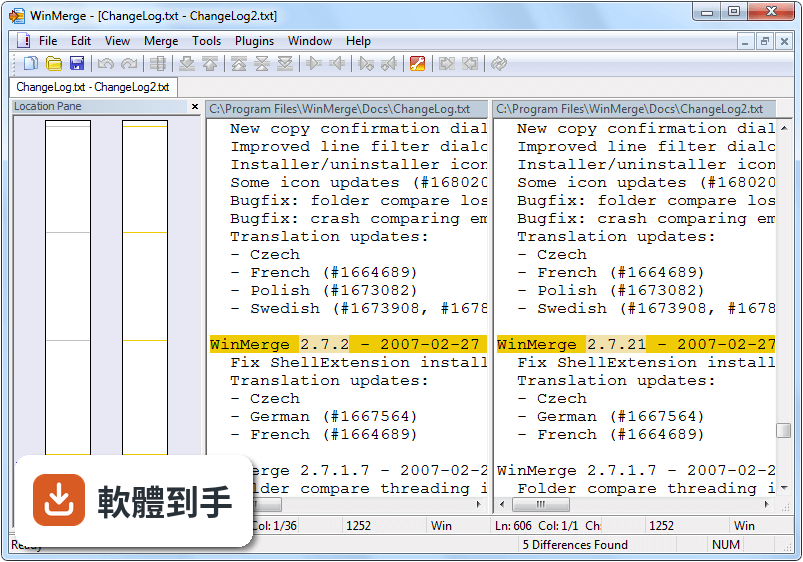
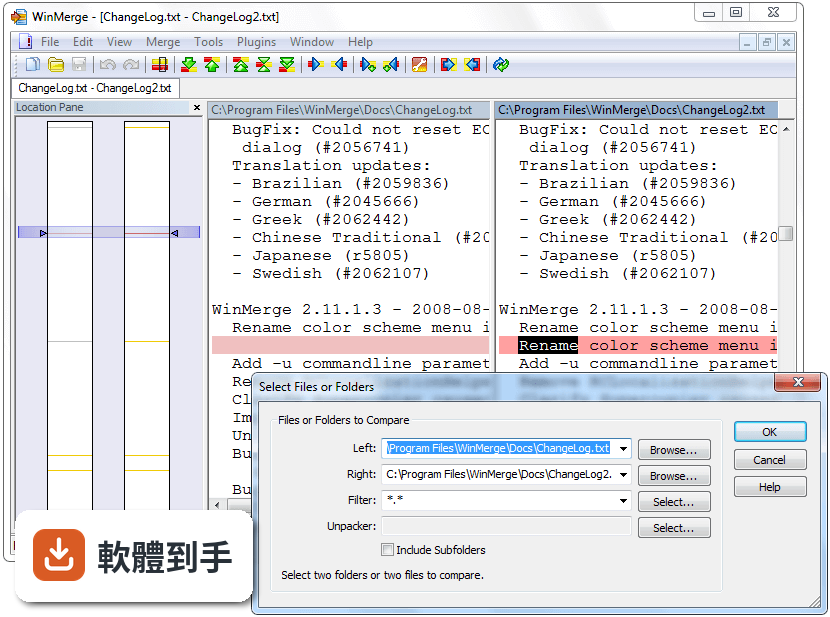
它是一套在 Windows 上比對檔案和資料夾差異的免費開源軟體。你可以選兩個檔案,它會把內容並排顯示,用顏色標出哪幾行有新增、刪除或修改;也可以選兩個資料夾,它會列出哪些檔案有變動、哪些檔案只存在於其中一邊。比對完之後,你可以把某一邊的變更內容合併到另一邊,讓兩邊的內容同步。
02除了純文字檔,它能比對圖片或表格嗎?
可以。它支援圖片比對,能顯示兩張圖片的差異區塊,也可以把圖片重疊起來看變化;另外也支援表格比對,CSV 或 TSV 這類以逗號或定位點分隔的檔案,會以表格形式呈現,方便逐欄比對。不過表格比對的呈現方式比較基本,如果你的需求是複雜的資料庫比對,可能要另外找專門的工具。
03比對完之後,要怎麼把修改內容合併過去?
在比對結果的視窗裡,每一行差異都可以用工具列按鈕或右鍵選單,把左邊的內容複製到右邊,或把右邊的內容複製到左邊。你可以逐行決定要搬哪一邊,也可以一次把整個區塊的變更全部套用過去。合併前它會先標示清楚,合併後也可以復原,所以不用擔心改錯。
04它能不能跟 Git 或 SVN 這類版本控制系統搭配使用?
可以。它支援與 Git、SVN 等版本控制系統整合,用來比對和合併版本之間的變更。實際設定的方式會因版本控制工具而異,但一般來說,你可以在 Git 或 SVN 的設定中,把 WinMerge 指定為外部比對或合併工具,之後遇到衝突或需要看差異時,就會直接呼叫它來處理。
05比對資料夾的時候,除了看差異,能不能直接同步?
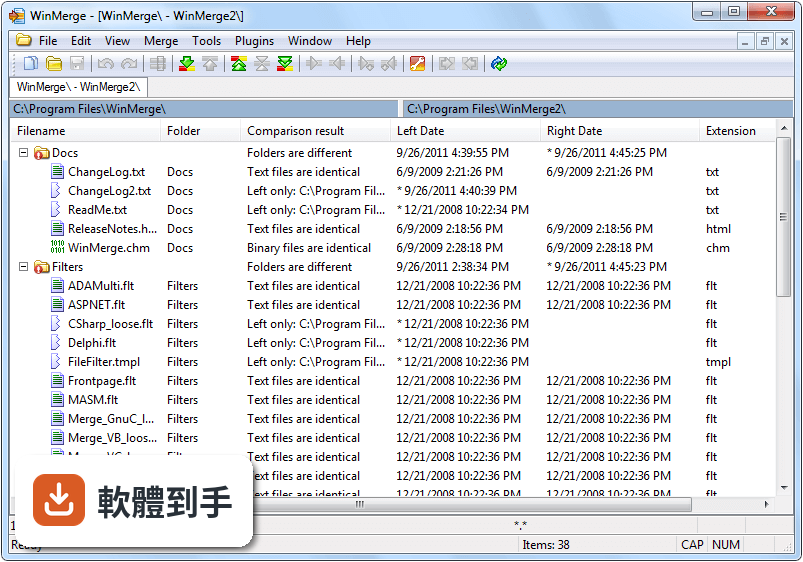
可以。比對兩個資料夾之後,它會列出哪些檔案有差異、哪些檔案只存在於某一邊。你可以勾選要處理的檔案,然後執行同步動作,把缺的檔案複製過去,或把修改過的檔案覆蓋到另一邊,讓兩個資料夾的內容一致。同步前它會先顯示預覽,讓你知道接下來會做什麼動作。
06我是寫程式的,這套軟體對我有幫助嗎?
有。它支援多種程式語言的語法高亮,比對程式碼時,不同型態的內容會用不同顏色標示,閱讀差異會比較清楚。三向合併功能也適合處理多人協作時的變更整合,可以把三個版本的內容合併在一起。另外,它跟 Git、SVN 的整合,讓你在看 commit 差異或解決衝突時,不用另外開視窗。
07我不寫程式,只是偶爾要比較兩個文件或試算表,用得上嗎?
用得上。它的核心功能就是比對文字內容,所以任何以文字為主的檔案——文件、設定檔、log 檔——都可以拿來比對。CSV 或 TSV 這類表格檔案也有表格比對模式,不需要寫程式就能操作。介面是英文的,但操作邏輯很直觀,開檔、看差異、按按鈕合併,不太需要額外學習。
08它的介面只有英文,會不會很難上手?
介面確實只有英文,沒有中文語系。但操作流程很單純:開檔、看顏色標示、按按鈕合併,這幾個步驟的英文單字都不難。如果你完全看不懂英文,使用上會有一些門檻,但核心功能的位置和圖示都算清楚,實際用過一次就能理解。介面配置和顏色也可以自訂,調整成自己習慣的樣式。
09我只有 Windows 電腦,它能跑嗎?
可以,它正式支援 Windows 7、8、10、11,32 位元和 64 位元都有支援。安裝時可以選擇額外元件,例如整合到檔案總管的右鍵選單,之後在檔案上按右鍵就能直接呼叫比對,不用先開軟體再選檔案。它不支援 Mac 或 Linux,如果你需要在其他系統上比對,要另外找替代方案。
10拿來比對很大的檔案,會不會跑不動?
官方說明指出,它支援大型檔案,但檔案極大時效能會變慢。實際能處理多大的檔案,官方沒有給出明確數字,建議你自己測試看看。如果你的工作經常需要比對數百 MB 甚至 GB 等級的檔案,可能要考慮其他專門處理大檔案的比對工具,或先確認這套軟體跑起來的表現是否符合需求。
11這套軟體在網站上只有 18 個人評分,評價數量這麼少,代表什麼?
評分人數少,代表樣本數不足,參考價值有限。它本身是免費開源軟體,開發歷史從 2000 年就開始,版本更新也算頻繁,但使用者的實際回饋數量不多。如果你在猶豫要不要用,可以先下載來試跑一次,用真實的檔案比對看看,比參考評分更實際。
12有 Beyond Compare 這類付費軟體,功能也差不多,我該換嗎?
Beyond Compare 是付費軟體,功能確實更豐富,但 WinMerge 免費且開源,核心的檔案和資料夾比對、合併功能都具備。如果你只需要基本的比對和同步,WinMerge 可以勝任;如果你需要更進階的比對規則或更快的處理速度,可以自行評估付費方案。兩者都可以先試用再決定,不需要預設哪一個一定比較好。
下載與官方連結
WinMerge-2.15.4-Setup.exe · 5.36 MB · 連結指向軟體原廠
版本紀錄
- 2026-08-28 WinMerge 2.16.58.2 16.39 MB
- 2026-07-28 WinMerge 2.16.58 16.37 MB
- 2026-05-28 WinMerge 2.16.56.2 13.87 MB
再看 5 筆
- 2026-04-28 WinMerge 2.16.56 13.02 MB
- 2026-02-28 WinMerge 2.16.54.2 11.88 MB
- 2026-01-27 WinMerge 2.16.54 10.85 MB
- 2025-11-27 WinMerge 2.16.52.2 11.8 MB
- 2025-10-27 WinMerge 2.16.52 11.8 MB
這一版改了什麼
What's new in this version:
Appearance:
- Flatten GUI pane edges
- Partial support for HiDPI (not Per-Monitor DPI Aware)
- Remove splash screen. The splash screen image is now displayed in About dialog
Tool bar:
- Add "View->Toolbar->Huge" menu item
- Add drop down menu to Options icon
- Add icons for 3-way merge functions
Open dialog:
- Change window type of Open dialog from modal window to MDI child window
- Add Read-only checkbox to Open dialog
- Add buttons to swap items
- Add the third path combobox for 3-way comparison
- Allow file name patterns like not only *.ext but file*.ext
Tab bar:
- Make Tabbar reorderable by using drag-and-drop
- Add "Close Other Tabs", "Close Right Tabs" and "Close Left Tabs" menu items to system menu
- Add "Enable Auto Max Width" menu item to Tab Bar context menu
- Show close button when hovering over tabs
- Add icons to each tab
Options dialog:
- Add "Close Select Files or Folders Dialog on clicking OK button" checkbox to "General" page
- Add "Language" combobox to "General" page and remove Language dialog
- Add "Ignore codepage differences" checkbox to "Compare/General" page
- Remove checkboxes in "Enable multiple compare windows for" group from
- "General" page (Now always enabled multi compare windows)
- Add "Include Subfolders" checkbox to "Compare/Folder" page
- Add "Automatically expand all subfolders" checkbox to "Compare/Folder" page
- Add "Ignore Reparse Points" checkbox to "Compare/Folder" page
- Add "Number of compare threads" textbox to "Compare/Folder" page
- Add "Compare/Binary" page
- Add "Compare/Image" page
- Add checkboxes whether to use custom colors for text to
- "Colors/Differences" page
- Add "GitHub/Bitbucket" button to "Colors/Differences" page
- Add "Margin" color button to "Colors/Text" page
- Add "Colors/Markers" page
- Remove "Use stand-alone 7-Zip if available" and
- "Use local 7-Zip from WinMerge folder" radio button from
- "Archive Support" page
- Now always use local 7-Zip from WinMerge folder)
- Make $file and $linenum parameters available in External editor textbox on "System" page
- Make Custom codepage on "Codepage" page selectable from dropdown list
- Add "Detect codepage for text files using mlang.dll" checkbox to "Codepage" page
- Remove "Include subfolders by default" checkbox from
- "Shell Integration" page
- ShellExtension now refers to "Include subfolders" checkbox on "Compare/Folder" page or on "Select Files or Folders" dialog)
- Remove "Add Shell menu to context menu" from "Shell Integration" page
- WinMerge now always adds shell menu to context menu in Folder window)
- Add "Register shell extension" button to "Shell Integration" page
Folder Compare:
- Add Multi-thread compare support for Full Contents or Quick Contents method
- Color the background of items in list view
- Restore collapse/expand state of folder tree after re-comparison
- Make comparing window closeable
- Make sub-folder re-comparable
- Display folder items in list view during comparison
- Display the file name currently being compared in progress window
- Add "Parent Folder" menu item in 'Open Left/Middle/Right' menu
- Add "Compare Non-horizontally" menu item to context menu
- Add "Copy items To Clipboard" menu item to context menu
- Add "Swap panes" menu item to View menu
- Add "Auto/Manual Prediffer" menu item to Plugin menu
- Open selected folders in new tab when clicking "Compare" menu item with pressing Ctrl key
- Cleanup Date column alignment
- Bugfix: Version column not sorted correctly
- Bugfix: A unique item that is a binary file was not detected as a binary file
- Bugfix: Properly handle 3-way comparison of Binary files
- Bugfix: Use proper font for View>Use Default Font menu item
File Compare:
- Add support for 3-way compare/merge
- Add "Diff Context" menu to View menu to adjust the number of displayed diff context lines
- Add "Split Vertically" menu item to View menu
- Add "Add Synchronization Point" to Merge menu
- Add "Auto/Manual Prediffer" menu item to Plugin menu
- Show the name of the applied plugin in the status bar
- Add shortcut(Ctrl+Alt+E) to open with external editor
- Add Go and Rust highlighter
- Add VHDL syntax highlighter
- Add C++11 keywords
- Make merge editor window D&Dable
- Highlight the search text and implement Marker
- Highlight the EOL pane in status bar if there is a difference in the EOL of files
- Reload files when another application changes files opened by WinMerge
- Improve in-line diff algorithm
- Bugfix: More on Issue #73 Fixed the -dl -dm and -dr description parameters for conflict files for both 2 way and 3 way conflict files)
- Bugfix: Fix Memory Leak with Drop Targets
Binary Compare:
- Install binary file editor (frhed) component again by default
- Make binary file editor undoable
Image Compare:
- Add image file compare/merge support
Reports:
- Add "Include File Compare Report" checkbox to "Folder Compare Report" dialog
- Change the encoding of HTML folder compare report from ANSI to UTF-8
- Add icons to the HTML folder compare report
- Change visual style of HTML report
- Archive Support:
- Install 7-zip plugin by default
Drag and Drop:
- Accept drag&droped files or folders from various places like:
- Zip folder, FTP folder, Recycle bin, images in Web browser
Plugins:
- Introduce new plugin type FILE_FOLDER_PACK_UNPACKER which allows unpacking data in a file to multiple files in a folder
- Use FILE_FOLDER_PACK_UNPACKER plugin for decompressing archives
- Add support for unpacker plugin written in VBScript/Javascript.
- Add WinMerge32BitPluginProxy.exe to make 32-bit plugins usable in 64-bit
WinMerge:
- Rewrite some plugins in VBScript
- Add CompareMSPowerPointFiles.sct plugin
- Add ApplyPatch.sct plugin
- Add SortAscending, SortDescending and ExecFilterCommand menu item to
- Plugin->Script menu
- Make plugins configurable with settings dialog of each plugin
Filters:
- Update *.flt files for Visual Studio 2015 and 2017
Shell extension:
- Display another WinMerge icon in Explorer's context menu when a folder is selected
Installer:
- 64-bit version of WinMerge is available
- Install plugins by default
Translations:
- Update Portuguese translation
- Update Korean translation
- Update Traditional Chinese translation
- Remove "Language" menu item from View menu
- You can specify UI language at Options dialog)
Command line:
- Incompatible change: The third file path is now treated as a right path for 3-way comparison, not output path
- Use /o option for ouput path instead
- Add /wm, /dm, /fl, /fm, /fr, /al, /am and /ar option for 3-way comparison
Other changes:
- Add support for jump list introduced in Windows 7
Internals:
- Use POCO C++ libraries instead of pcre, expat and scew
- They use pcre, expat internally
- Link statically with MFC and VC runtime libraries
- Various compilation/build fixes