
這是歷史版本頁面 — 看 XYplorer 最新版本
Windows內建檔案總管不夠用?XYplorer能做什麼
 XYplorer 18.60.0000
資料更新 2017-12-12
閱讀約 6 分鐘
Windows 內建的檔案總管,對很多人來說就是「開資料夾、複製貼上」而已。但當你手上同時有好幾個專案在跑,資料夾一層又一層,視窗開到工作列塞滿,想找一個檔案卻忘了放在哪,那一刻你會發現,內建工具好像幫不上什麼忙。你需要的不是更快的手速,而是一個能讓你同時看兩個資料夾、用標籤頁切換、還能快速搜尋檔案的工具。
一般人遇到這種狀況,最直覺的做法就是多開幾個檔案總管視窗,然後在視窗之間切來切去。但視窗一多,反而更亂,拖曳檔案也容易放錯位置。這類工具切入的點,就是把你平常在檔案總管裡重複做的動作——切換資料夾、比對檔案、找東西——變得更直接。它不改變你管理檔案的方式,而是讓那些繁瑣的步驟少掉一半。
01XYplorer 是什麼?跟 Windows 內建的檔案總管有什麼不同?
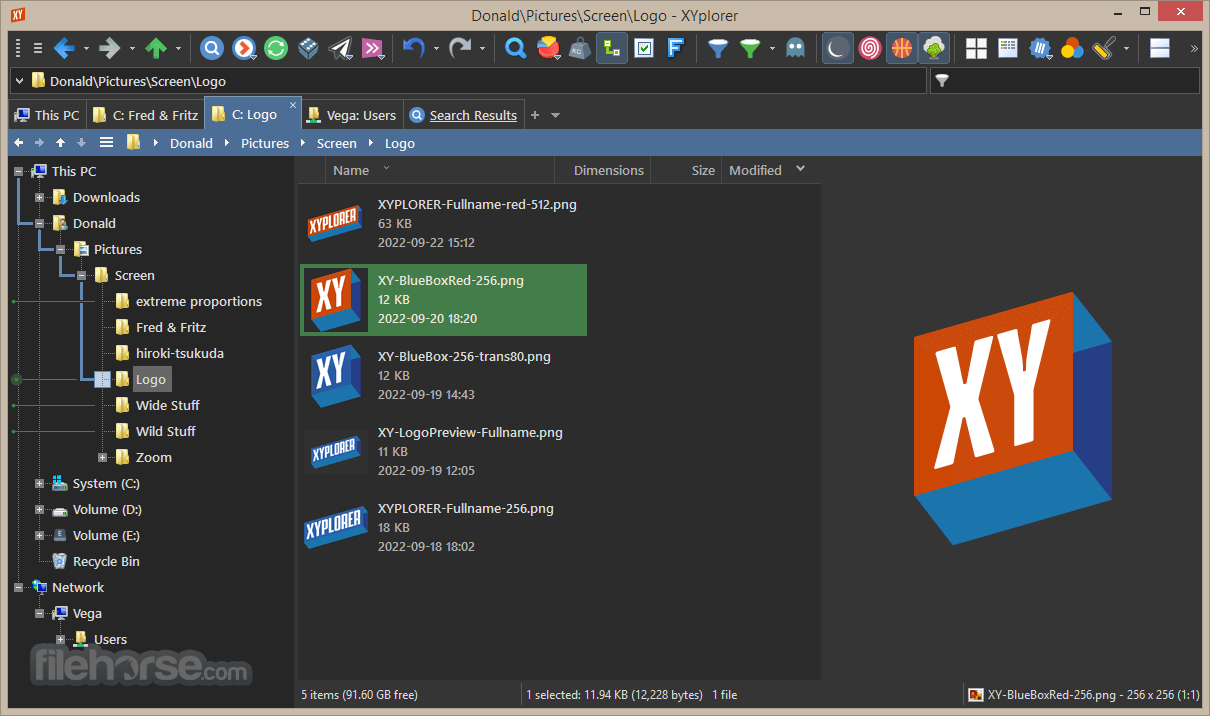
XYplorer 是 Windows 平台上的檔案管理軟體,提供標籤頁瀏覽、雙窗格模式、進階搜尋、腳本自動化等功能。跟內建檔案總管最大的差別在於,它可以在一個視窗裡開多個標籤頁,也能左右分割同時顯示兩個資料夾,並支援更細緻的搜尋條件與介面自訂。對經常處理大量檔案的人來說,操作效率會明顯不同。
02它的雙窗格模式實際用起來是什麼感覺?
雙窗格模式就是把視窗左右分成兩邊,各顯示一個資料夾。你可以直接從左邊拖曳檔案到右邊,不用另外開視窗。對於要整理檔案、比對兩個資料夾內容、或頻繁搬移檔案的人來說,這個功能可以省下不少來回切換的時間。操作方式跟檔案總管類似,只是多了一個可以同時操作的區域。
03它的搜尋功能比 Windows 內建的強在哪裡?
內建檔案總管的搜尋只能輸入關鍵字,然後等結果慢慢跑。XYplorer 的進階搜尋可以設定多種過濾條件,例如檔名、副檔名、檔案大小、修改日期等,能更精準地縮小範圍。如果你知道檔案大概的類型或時間,就不用在一堆結果裡慢慢找。搜尋速度也比較快,但實際效能還是取決於你的硬碟和檔案數量。
04它支援腳本自動化,這對一般人有什麼用?
腳本可以讓你把重複性的檔案操作變成一個指令。例如,你每天都要把某個資料夾裡的檔案依照日期分類,或把特定副檔名的檔案移到另一個位置,這些動作可以寫成腳本,之後一鍵執行。不過,寫腳本需要花時間學習語法,如果你只是偶爾整理檔案,可能用不太到這個功能。
05它的可攜版(Portable Mode)是怎麼運作的?
可攜版不需要安裝,直接把檔案解壓縮後就能執行,也可以放在隨身碟裡帶著走。設定和偏好設定會跟著軟體資料夾走,不會殘留在系統裡。對需要在不同電腦上工作的人來說,這是一個很方便的選擇。要注意的是,可攜版和安裝版的授權方式相同,試用期過後還是需要購買授權。
06什麼樣的人適合用這套軟體?
如果你的工作需要頻繁處理大量檔案,例如程式開發、平面設計、影音剪輯,或只是單純受不了內建檔案總管的功能限制,這套軟體會值得你花時間試用。它的標籤頁和雙窗格模式對多工處理很有幫助,進階搜尋也能省下找檔案的時間。但如果你只是偶爾開資料夾、複製貼上,那內建的就夠用了。
07它跟 Total Commander 比起來,差別在哪?
官方說明提到,XYplorer 主打現代化的介面和標籤頁瀏覽,而 Total Commander 比較偏向指令操作,且內建 FTP 支援。XYplorer 沒有內建 FTP,但介面比較接近 Windows 使用者的習慣,學習曲線相對平緩。如果你需要 FTP 功能,或習慣指令列操作,Total Commander 可能是另一個選擇;如果你想要一個外觀熟悉、功能更強的檔案總管,XYplorer 會比較合適。
08它可以在 Mac 或 Linux 上使用嗎?
不行。官方說明明確指出,XYplorer 只支援 Windows 系統,沒有 Mac 或 Linux 版本。如果你主要使用 Mac 或 Linux,這套軟體就不在你的選項內,需要找其他跨平台的檔案管理工具。
09它可以直接連雲端硬碟嗎?
官方說明指出,XYplorer 沒有直接的雲端整合功能,但 OneDrive、Google Drive、Dropbox 的檔案可以像一般本機資料夾一樣存取。也就是說,如果你有安裝雲端硬碟的桌面同步軟體,在 XYplorer 裡還是看得到那些資料夾,只是沒有額外的雲端專屬功能,例如查看同步狀態或線上檔案。
10它的試用版有什麼限制?
試用版可以免費使用 30 天,時間到之後需要購買授權才能繼續使用。註冊後,試用版的限制會立即解除。官方定價方面,標準版終身授權是 39.95 美元,專業版終身授權是 79.95 美元,後者包含終身免費更新。如果你只是短期需要,試用期可能夠用;長期使用的話,就要考慮授權費用。
11有免費的替代方案嗎?
有。官方列出的替代方案中,Q-Dir 是免費的四窗格檔案管理工具,Double Commander 也是免費且開源的選擇,兩者都有不少使用者評分。FreeCommander 和 Multi Commander 也提供免費版本。如果你的需求主要是多窗格或雙窗格操作,這些免費工具可以滿足基本需求,只是功能豐富度和介面細緻度可能不如 XYplorer。
12這套軟體的更新頻率如何?還有人在維護嗎?
從版本紀錄來看,XYplorer 收錄了 48 個版本,最早的版本在 2017 年,最近一次更新在 2026 年 3 月,但近 12 個月只更新了 1 次,近 24 個月也是 1 次。也就是說,它仍然有在維護,但更新頻率不算高。如果你很在意軟體是否頻繁修 bug 或加新功能,這點需要列入考量。
下載與官方連結
xyplorer_full.zip · 連結指向軟體原廠
版本紀錄
- 2026-09-23 XYplorer 28.40 6.4 MB
- 2026-03-27 XYplorer 28.30 6.4 MB
- 2023-11-23 XYplorer 25.20
再看 5 筆
- 2023-11-05 XYplorer 25.10
- 2023-08-10 XYplorer 24.80
- 2023-06-25 XYplorer 24.60
- 2023-06-07 XYplorer 24.50
- 2023-04-30 XYplorer 24.40
這一版改了什麼
What's new in this version:
XYplorer 18.60.0000
Self Update:
- Now the updated app will auto-run after self-update
Transparency Grid:
- Now you can customize the two checkerboard grid colors
- Numerous Small Improvements and Fixes
XYplorer 18.50.0300
- Minor bug fixes and enhancements
XYplorer 18.50.0200
- Change log not available for this version
XYplorer 18.50.0100
- Minor bug fixes and enhancements
XYplorer 18.50.0000
Toolbar Captions:
- Finally XYplorer’s newbie-friendliness extends to the toolbar. If you ever wanted to know what those colorful toolbar buttons actually do, this version comes with optional captions. To turn on the captions use menu command Tools | Customize Toolbar... (Ctrl+Shift+F9), then click the Options button in the Customize Toolbar dialog, and tick Show Button Captions. Well, this is definitely a newbie-only feature (but hey, we all should honor our inner newbie once in a while). Fortunately you can scroll the toolbar (by dragging it with the mouse) to move the rest of the buttons into view
Sync Caps:
- Now Sync Folders ensures that the capitalization (lower/upper case letters in the item names) of the target files and folders exactly matches that of the source items. There is nothing to learn. It just works.
Filtered Sync:
- Now you can explicitly include and exclude files and folders from Sync Folders by passing a list of patterns to the job. Wildcards supported. Scripting abilities needed
Shortcut Overlays:
- Now you can say no to shortcut overlays
XYplorer 18.40.0100
- Minor bug fixes and enhancements
XYplorer 18.40.0000
Sync Folders:
- Finally XYplorer lets you synchronize two folders. It's a one-way sync, also known as mirror sync: The target folder is made to be like the source folder. Now it's just a toolbar button away
- Advanced Users: Scripting support lets you create buttons or batches for frequently recurring sync tasks
Time Stamping:
- Now you can easily "touch" files (set the filetime to now) via the context menu
Know Your Clipboard:
- The Paste toolbar button now shows what's in the clipboard, i.e. the stuff that will be pasted if you click the button
Backup Speed:
- Backup operations are much faster now when most items are skipped, which is the common case in large incremental backups
XYplorer 18.30.0000
- Touchscreen Mode. Bigger icons are just a click away now. Big enough to be touched with big fingers. The fonts get bigger, too. Easier to read in harsh lighting conditions.
- Time Stamping. Now you can edit file dates right from the list column. You can even paste a file date from the clipboard directly into the column. Multiple files can be stamped in one go.
- Age Display. The unit "week" has been replaced by "month". Easier to process for most brains assumingly.
XYplorer 18.20.0300
- Minor bug fixes and enhancements
XYplorer 18.20.0200
- Minor bug fixes and enhancements
XYplorer 18.20.0100
- Change log not available for this version
XYplorer 18.20.0000
- Age Circles: Little visual helpers that let you instantly grasp the rough age of a file. No more brain power wasted on deciphering date strings. Addictive killer feature of the year so far
- Age Tips: Now when you hover any cell in any date column the corresponding age is displayed in a tooltip
XYplorer 18.10.0100
- Minor bug fixes and enhancements
XYplorer 18.10.0000
Hamburger at the Breadcrumbs:
- A new button brings some often used commands closer to the mouse. Actually we should have made it a Cheeseburger to attract the mouse even more. The button pops a menu that is fully customizable. However, you need to acquaint yourself with light programming skills to make it happen. No worries, even the default commands will likely streamline your workflow
Dual Pane Commands:
- Added commands "Move to Other Pane" and "Copy to Other Pane" to the context menu of any selected items
Dual Permanent Startup Path:
- Now can define a permanent startup path for each pane. Use the field Configuration | General | Startup & Exit | Permanent startup path and enter both paths separated by a double pipe (||). For example, to open pane 1 always in C:, and pane 2 always in D:, enter C:||D:
Toolbar Goes Nuts:
- New buttons "Move to Recent Locations" and "Copy to Recent Locations" drop the list of recent locations as targets to move/copy the currently selected items to. Use command Tools | Customize Toolbar... (Ctrl+Shift+F9) to add the button(s) to your toolbar. BTW, the icon is an acorn, typically collected by squirrels in their storage locations. Well, that's the idea, collecting stuff in known places. The Copy acorn is blue as in blueprint (= copy)
XYplorer 18.00.0000
- Persistent Live Filters. Now optionally Live Filters persist across folders, and are remembered across tab switches and across sessions
- User-Defined Preview Handlers. Now you can freely associate particular file types with particular preview handlers. This means full preview control without touching the registry
XYplorer 17.90.0400
- Minor bug fixes and enhancements
XYplorer 17.90.0300
- Minor bug fixes and enhancements
XYplorer 17.90.0200
- Minor bug fixes and enhancements
XYplorer 17.90.0100
- Minor bug fixes and enhancements
XYplorer 17.90.0000
Size Graphics:
- Now the size column can have graphical representations of the byte counts right in the column. Simply right-click the size column header and choose between three options: No Graphics, Circles, Bars
Size Tooltips:
- The size column now always shows a tooltip (even if the text is not cropped) with the exact byte count of the hovered item. Saves lots of clicks when you are interested in exact numbers
Live Filtering:
- Now you can filter-as-you-type right in the file list. Try it and you will love it. A brilliant way to tame long file lists and focus on what’s important now
Icon Lists:
- Now you can specify a list of icons that are shown side by side for each item in custom columns. Write a script to determine which icons are shown for each particular file. This lets you present file information in a visually catchy way
XYplorer 17.80.0000
Icons in Custom Columns:
- Now you can create your own columns and have them display icons of your choice. E.g. you could create a column that shows a special camera icon for all photos that were shot with a Nikon. Make stand out what’s important to you, and do it in a way that works best for you and your eyes
Circles in Custom Columns:
- Now you can decorate your files with colorful circles. Brings back a long-missed psychedelic kindergarten vibe to file management
Scroll Margin:
- Introducing a smart little usability enhancer that gives some context to your cursor when moving up or down the list with the arrow keys. Lets you see where you are going before you go there. Relaxing
XYplorer 17.70.0200
- Minor bug fixes and enhancements
XYplorer 17.70.0100
- The last version, v17.70.0000, had an issue where the mouse input was not released to other processes under certain conditions. Nothing dangerous but certainly annoying. It’s fixed now.
XYplorer 17.70.0000
Hover Box:
- When hovering a file icon or caption of an image file a popup shows a thumbnail and basic file, image, and photo information. A highly addictive zero click preview.
Keyboard Navigation:
- Now you can navigate the list and open files and folders right from the Live Filter Box. Productivity boost for typers.
Live Filter Box:
- Now you can type a space to see only those items with at least one space in their name. Sounds lame but File Explorer can’t do it.
XYplorer 17.60.0100
- Minor bug fixes and enhancements
XYplorer 17.60.0000
Find Files by Path:
- Now you can find items by the name of their parent folder or full path, using a simple inline switch
New Overwrite Prompt:
- Redesigned the dialog for clarity and usability
Audio Properties:
- Now the basic audio properties (Bit Rate, Sample Rate, Channels, Length) are shown right in the Large Tiles view. Allows for a quick glance without displaying any spacy extra columns
XYplorer 17.50.0200
- Change log not available for this version
XYplorer 17.50.0200
- Change log not available for this version
XYplorer 17.50.0000
Quick Audio Preview:
- Mouse down on the file icon to hear the sound. Mouse move to scroll. Mouse up to stop. MP3, WAV, FLAC, OGG... you name it. With interactive progress bar. Probably the most convenient audio file previewer on the planet.
Support of Filenames Ending With Dot or Space:
- Those filenames are invalid in the Windows name space and the shell cannot do anything with them. Delete, rename, move, it all fails with the standard File Explorer. XYplorer now can handle them.
Extra Large Toolbar:
- Now you can have extra large buttons (48x48 pixels). Increases toolbar usability on high-resolution screens.