
誤刪檔案救得回來嗎?Wondershare Data Recovery 怎麼用
 Wondershare Data Recovery 14.5.2
資料更新 2026-09-09
閱讀約 7 分鐘
你正準備把重要報告從隨身碟複製到電腦,一個恍神按成「刪除」,檔案瞬間消失。或者更慘,你格式化了一顆外接硬碟,事後才想起裡面有幾百張沒備份的照片。當下你只想把資料找回來,但回收站是空的,備份也不存在,你開始搜尋「資料救援」相關的軟體,想知道這種狀況還有沒有救。
一般人遇到這種事,第一個念頭是上網找免費工具,但很多免費軟體不是只能掃描不能還原,就是限制恢復檔案的大小或類型。更麻煩的是,如果繼續使用那顆硬碟,新寫入的資料可能覆蓋掉原本的檔案,讓救援難度變高。這類資料救援工具的切入點,是在檔案被刪除後、還沒被完全覆蓋前,掃描儲存裝置的底層結構,把殘留的檔案片段重新組合回來。
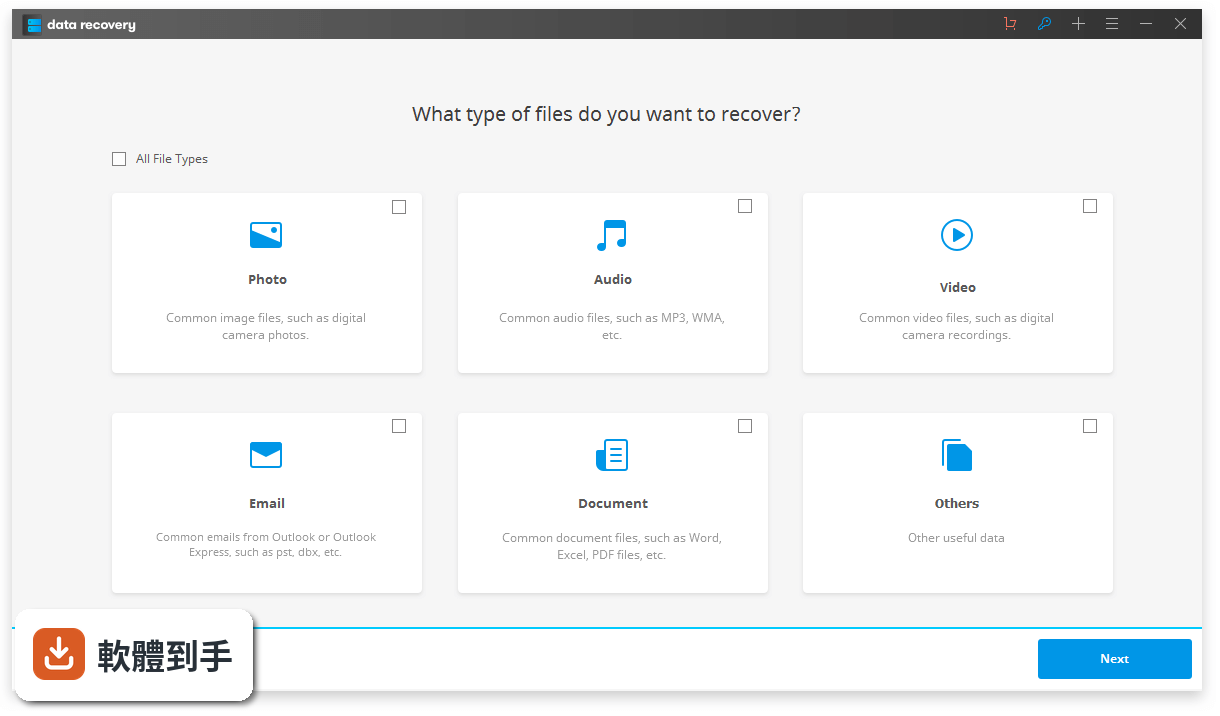
01Wondershare Data Recovery 可以救回哪些類型的檔案?
官方說明指出,它支援的文件類型涵蓋文件、圖片、影片、音樂和郵件檔案。文件部分包括 Word、Excel、PowerPoint、PDF 等常見格式;圖片支援 JPG、PNG、RAW 等;影片和音樂也涵蓋主流格式。另外也包含 Outlook 等郵件用戶端的 PST、EMLX 檔案,以及 ZIP、RAR 壓縮檔。基本上電腦或外接裝置上常見的檔案類型都在範圍內。
02這套軟體能處理哪些資料遺失的狀況?
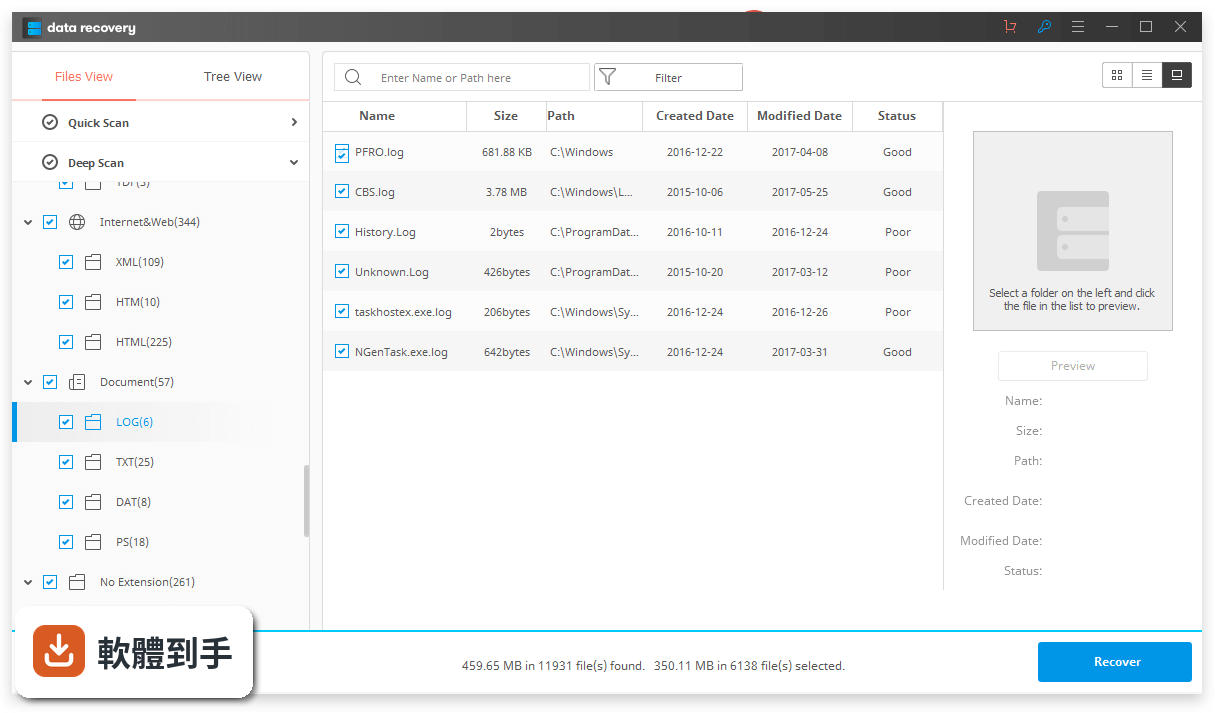
根據官方功能說明,它對應的場景包括:誤刪檔案、回收站清空、格式化磁碟、分割區遺失、外接裝置故障、病毒攻擊、系統崩潰等。操作流程是先選擇對應的資料遺失情境,再指定要掃描的磁碟位置,掃描完成後預覽檔案並勾選要恢復的項目。如果快速掃描找不到,可以改用「All-Around Recovery」模式做更深層的搜尋。
03免費版和付費版差在哪裡?
官方說明提到,免費版可以下載使用,能恢復最多 100 MB 的資料,而且支援所有檔案類型。也就是說,你可以先用免費版確認檔案是否真的掃描得回來,再決定要不要付費解鎖完整恢復功能。如果你的遺失資料總量不大,100 MB 的額度可能就夠用;但如果是整顆硬碟的大量檔案,就需要付費版本才能完整恢復。
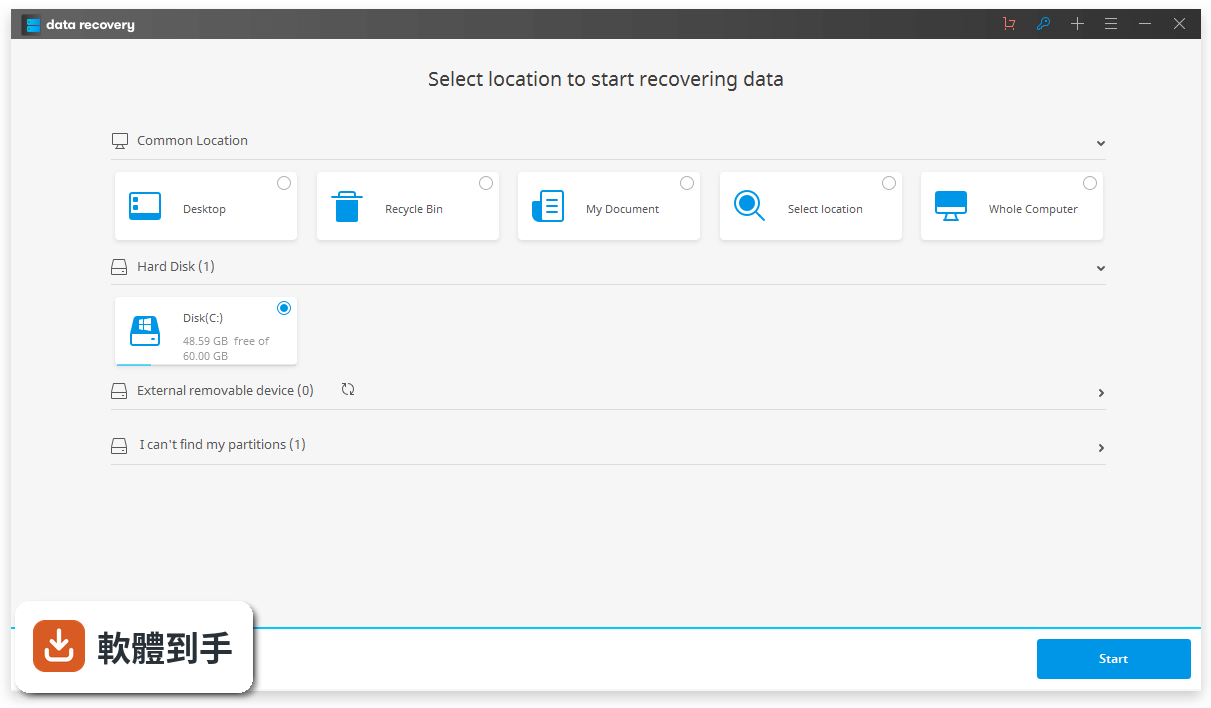
04掃描硬碟要花多久時間?
官方說明指出,掃描時間會依據磁碟容量和存放的資料量而異,沒有給出明確的數字。一般來說,容量越大、資料越多,掃描時間越長。另外,如果第一次快速掃描找不到目標檔案,改用深層掃描模式會花更久的時間。建議在掃描過程中不要同時進行其他大量讀寫操作,避免影響速度或造成資料覆蓋。
05恢復出來的檔案還能正常開啟嗎?
官方說明強調,軟體具備預覽功能,在恢復前可以先確認檔案是否完整、能否正常顯示。掃描完成後,你可以瀏覽檔案列表並預覽照片或文件內容,確認無誤再勾選恢復。不過,預覽只能確認檔案可被讀取,無法保證每個檔案都百分之百完整,特別是檔案片段被部分覆蓋的情況。恢復後建議逐一開啟檢查。
06這套軟體適合什麼樣的人用?
適合遇到資料遺失、而且遺失的資料量在免費版 100 MB 限制內的人,可以先不花錢試試看能否救回重要檔案。也適合需要處理多種遺失情境的人,例如同時遇到格式化硬碟和系統崩潰的問題,因為它把不同場景整合在同一個介面中。另外,如果你需要恢復的是 RAW 影像檔或專業軟體的專案檔,官方說明提到有針對這些格式做加強。
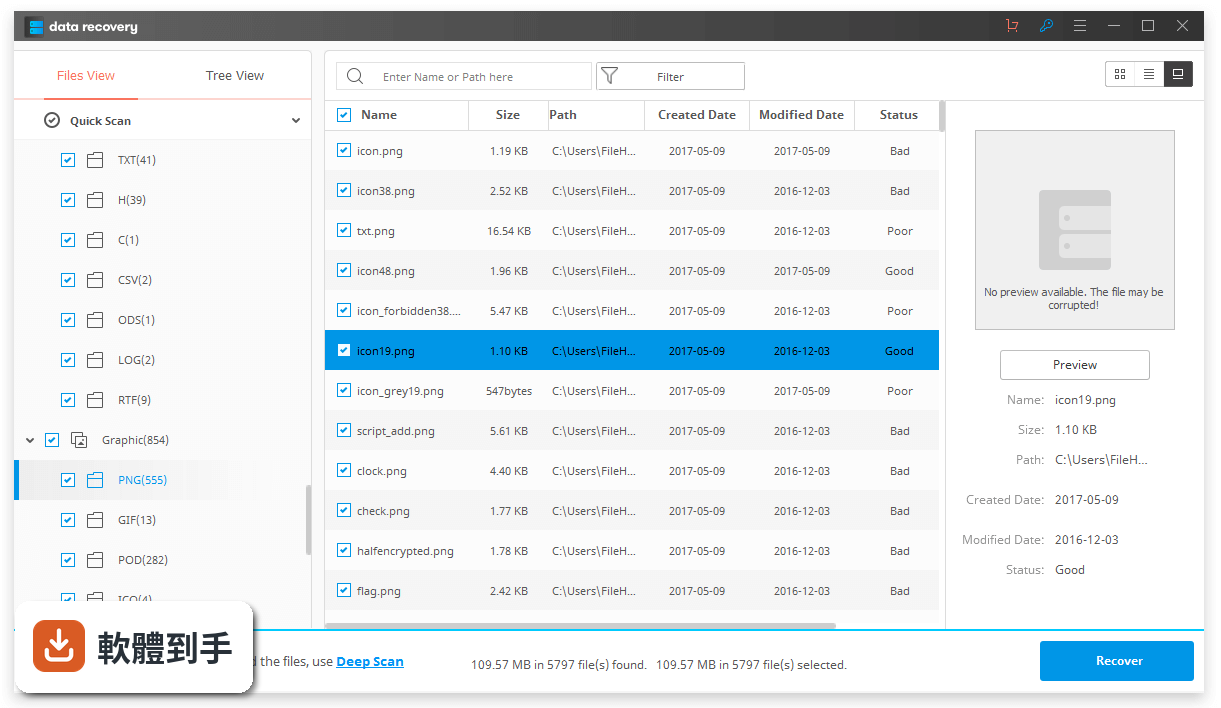
07英文介面會不會很難操作?
這套軟體的介面只有英文,對不習慣英文操作的人來說確實需要花時間適應。不過,它的操作流程相對直觀:啟動後選擇遺失情境、選磁碟、按開始掃描、預覽、恢復,步驟不多。官方網站有提供操作說明,但都是英文。如果你對英文介面完全沒把握,可以先下載免費版實際走一遍流程,確認自己能操作再決定是否購買。
08電腦系統崩潰、進不了 Windows,這套軟體還有用嗎?
官方說明提到,它支援從系統崩潰或開機問題的電腦中恢復資料。不過,軟體本身需要在正常運作的系統上執行,如果你的電腦完全無法開機,可能需要把硬碟拆下來接到另一台電腦上進行掃描。官方說明中有提到系統崩潰時的資料恢復方式,但具體操作步驟需要到官方網站查詢,這部分沒有在現有資料中詳細說明。
09免費版只能恢復 100 MB,夠用嗎?
如果你的遺失資料是幾份文件、幾張照片,100 MB 可能足夠;但如果是整顆硬碟的影片、大量 RAW 檔或整個分割區的資料,100 MB 完全不夠。這種情況下,免費版的功能比較像是「驗證工具」,先確認檔案掃描得回來,再決定是否付費。另外要注意,免費版的 100 MB 限制是總量計算,不是單一檔案,這點需要自行確認。
10這套軟體和 Recuva 比起來,該選哪個?
兩者都是資料救援工具,但定位不同。Recuva 是免費軟體,適合輕度使用;Wondershare Data Recovery 是付費軟體,提供更多進階功能,例如系統崩潰恢復、RAW 掃描格式支援等。在評分人數上,Recuva 有 114 人評分,Wondershare 有 250 人評分,兩者都有一定使用基礎。如果你的需求只是偶爾誤刪檔案,Recuva 可能就夠用;如果常處理大量資料遺失,可以考慮付費工具。
11這套軟體長期沒有更新,會不會有相容性問題?
根據版本紀錄,這套軟體近兩年內有 3 次更新,更新頻率不算頻繁,但也不是完全停滯。官方說明中提到新增了 AI 功能、OneDrive 資料恢復支援、exFAT 演算法最佳化等,顯示開發商仍有在維護。不過,如果你使用的是較舊的 Windows 7 系統,要注意它只支援 64 位元版本。建議下載前先確認你的系統版本是否符合需求。
12恢復資料時有什麼要注意的事?
官方說明特別提醒,恢復的檔案不要儲存到原本遺失資料的那顆磁碟,避免覆蓋掉還沒被救援的檔案。另外,掃描完成後如果找不到目標檔案,可以改用深層掃描模式再試一次。在恢復過程中,建議關閉其他會大量寫入磁碟的程式,例如下載工具或備份軟體,降低資料被覆蓋的風險。恢復完成後,逐一檢查檔案是否完整可用。
下載與官方連結
前往官方網站 下載 Wondershare Data Recovery
recoverit_setup_full.exe · 193 MB · 連結指向軟體原廠
版本紀錄
- 2026-09-09 Wondershare Recoverit 14.5.2 193 MB
- 2026-09-01 Wondershare Recoverit 14.5.1 193 MB
- 2026-08-18 Wondershare Recoverit 14.0.35 229 MB
再看 5 筆
- 2026-08-06 Wondershare Recoverit 14.0.34 229 MB
- 2023-10-06 Wondershare Recoverit 12.0.14 129.96 MB
- 2023-04-20 Wondershare Recoverit 11.5.5 141.81 MB
- 2022-12-07 Wondershare Recoverit 10.6.7 135.5 MB
- 2018-05-29 Wondershare Data Recovery 7.0.0 1024 KB
這一版改了什麼
- Upgraded external device recovery (CF card/USB/hard drives etc.)
- Compatible with Win On ARM devices.
- Improved scan quality & scan strategy, and supports consecutive scan from breakpoint.
- Leading scan speed & recovery quality.
- More intuitive & user-friendly UI.
- Enhanced Photo & Video Recovery
- NAS & Linux Recovery
- Disk image Recovery
- Upgraded Video Repair
- Brand New Interface
What is Recoverit?
Recoverit is a data recovery software developed by Wondershare. It is designed to help users recover lost or deleted files from various storage devices such as hard drives, USB drives, memory cards, and more.
How does Recoverit work?
It utilizes advanced scanning algorithms to search for and recover deleted or lost files from storage devices. It scans the device, identifies recoverable files, and allows users to preview and restore them.
Can Recoverit recover files from formatted drives?
Yes, it can recover files from formatted drives. It can scan the formatted drive and retrieve lost files, as long as the data has not been overwritten.
What types of files can be recovered with Recoverit?
It can recover a wide range of file types, including photos, videos, documents, emails, audio files, and more. It supports popular formats like JPEG, MP4, DOCX, PST, and many others.
Can Recoverit recover files from a crashed or unbootable computer?
Yes, it provides a bootable media feature that allows users to create a bootable drive or DVD. This enables you to recover files from a crashed or unbootable computer.
Is it safe to use Recoverit?
Yes, the program is safe to use. It employs secure and read-only data recovery methods, ensuring that your original data remains intact and unaffected during the recovery process.
What storage devices are compatible with Recoverit?
It supports various storage devices, including internal and external hard drives, USB flash drives, memory cards, digital cameras, camcorders, and more. It works with both Windows and macOS operating systems.
Can I recover files that were deleted a long time ago?
It can recover files that were deleted a long time ago, as long as the storage device has not been extensively used or overwritten since the deletion. The chances of successful recovery may vary depending on the specific circumstances.
What should I do if Recoverit doesn't find my lost files?
If the app doesn't find your lost files, there are a few things you can try. First, make sure you're using the latest version of the software. You can also try deep scanning for a more thorough search. If your files are still not found, it's recommended to contact Recoverit support for further assistance.
Alternatives
Disk Drill: A feature-rich data recovery software that allows you to recover lost or deleted files from your computer or external storage devices.
Recuva: A popular data recovery tool that helps you recover accidentally deleted files from your computer, recycle bin, digital camera, or external storage devices.
EaseUS Data Recovery Wizard: A popular data recovery app that enables you to recover lost or deleted files from various storage devices.
Stellar Windows Data Recovery: A comprehensive data recovery tool that helps you recover lost or deleted files from a wide range of storage devices.
MiniTool Power Data Recovery: A comprehensive data recovery software that helps you recover lost or deleted files from different storage devices, including hard drives, SSDs, USB drives, and memory cards.
Pricing
Essential Plan - $69.99/yr
- 1000+ Files Supported
- 2000+ Devices Supported
- Create & Recover Disk Image
- Deep Scan & Preview Mode
- 1000+ Files Supported
- 2000+ Devices Supported
- Create & Recover Disk Image
- Deep Scan & Preview Mode
- Bootable Toolkit
- Create a Bootable Disk/USB
- Recover Data From BSOD
- Recover Data From Crashed PC
- Advance Recovery
- Enhanced Video Recovery
- Recover From NAS Server
- Recover From Linux System
- Operating System: Windows 11/10/8.1/8/7/Vista/XP (32-bit or 64-bit)
- CPU: 1 GHz or faster (32-bit or 64-bit)
- RAM: 512 MB or more
- Disk Space: About 100 MB of free space for installation
- Additional Requirements: A stable internet connection for software activation and updates
- Easy to use: It has a user-friendly interface that makes it easy for users to navigate and recover their lost data.
- Wide range of file formats: It supports a wide range of file formats, including photos, videos, documents, emails, and more.
- Multiple recovery modes: It offers multiple recovery modes, including quick scan, deep scan, and raw recovery, to help users find and recover lost data.
- Preview feature: It allows users to preview the recoverable files before restoring them, which can help them avoid restoring unnecessary or unwanted files.
- Cross-platform compatibility: The app is available for Windows and Mac, making it accessible to users on different operating systems.
- Limited success rate: While it can recover many types of lost data, it may not be able to recover all data, especially if the data has been overwritten or damaged.
- Slow scanning speed: Recoverit's deep scan mode can take a long time to complete, especially for large storage devices.
- Limited free version: The free version of the app only allows users to recover up to 100MB of lost data, which may not be sufficient for some users.
- No cloud backup integration: It doesn't offer built-in cloud backup integration, which means users will need to manually back up their important files to their preferred cloud storage provider.
- Expensive pricing: The pricing for Recoverit's paid plans can be expensive, especially for users who only need to recover a small amount of data.
In conclusion, Recoverit is a user-friendly and versatile data recovery software that can help users recover lost data from a wide range of file formats and storage devices. It offers multiple recovery modes, a preview feature, and cross-platform compatibility, making it a popular choice for individuals and businesses looking to recover lost data.
Note: In the demo version, 100MB of data can be recovered.
Also Available: Download Recoverit for Mac
Download Recoverit Latest Version Why is this app published on FileHorse? (More info)