
這是歷史版本頁面 — 看 Subtitle Workshop 最新版本
字幕時間軸一直對不上?Subtitle Workshop 能做什麼
 Subtitle Workshop 6.0 Build 130814
資料更新 2013-08-15
閱讀約 5 分鐘
下載了影片,字幕卻跟嘴型對不上,慢了半拍或快了兩秒。想調整,卻不知道從哪裡下手——播放器裡沒有調整字幕時間的功能,用記事本打開字幕檔,密密麻麻的時間碼看得頭痛。尤其遇到整段字幕都偏移的情況,手動一行一行改,改到一半就放棄了。
有些人會用影片剪輯軟體來處理,但為了調整字幕去開一套剪輯軟體,光是匯入、輸出就耗掉不少時間。更別說不同來源的字幕格式不一,播放器不吃就顯示不出來。這類字幕編輯工具切入的點,就是專門處理時間軸和格式轉換——把字幕檔當成主要工作對象,而不是附帶功能。
01Subtitle Workshop 能拿來做什麼?
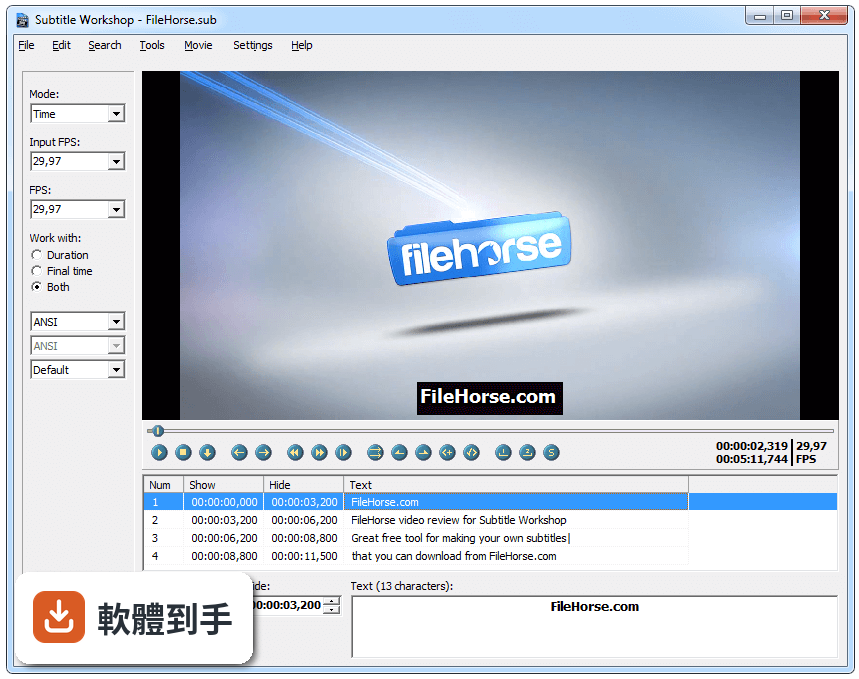
主要用於建立、編輯和轉換字幕檔。可以調整字幕出現和消失的時間點、修正不同步的問題、把字幕從一種格式轉成另一種,也支援基本的拼寫檢查和翻譯輔助。支援超過60種字幕格式,包括常見的SRT、SUB、SSA、ASS和TXT。編輯時可以搭配內建或外部播放器即時預覽,確認字幕和畫面對齊。
02字幕時間軸跟影片對不上,它能怎麼處理?
可以逐條調整每句字幕的開始時間、結束時間和持續時間,精細度可到影格等級。如果整段字幕都偏移,可以用批次調整的方式一次修正。它也有基本的自動同步功能,但官方建議手動微調會更準確。調整時可以邊看影片預覽邊改,確認字幕和口型對齊。
03它支援哪些字幕格式?
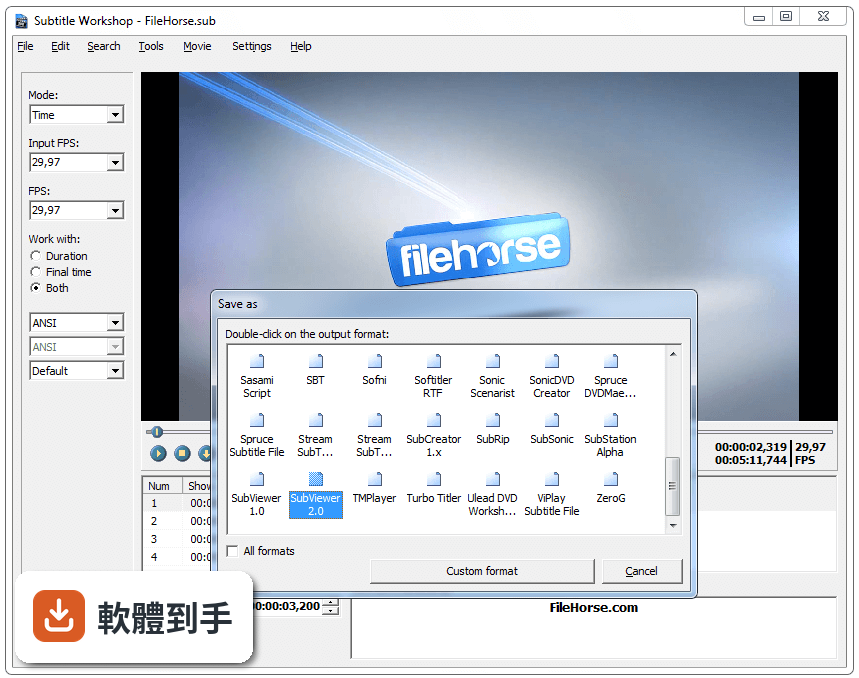
官方說明提到支援超過60種字幕格式,包括SRT、SUB、SSA、ASS和TXT等常見格式。也支援Unicode和其他編碼,所以處理多語言字幕沒有問題。如果遇到播放器不吃的格式,可以用它轉成目標格式。
04可以一次處理多個字幕檔嗎?
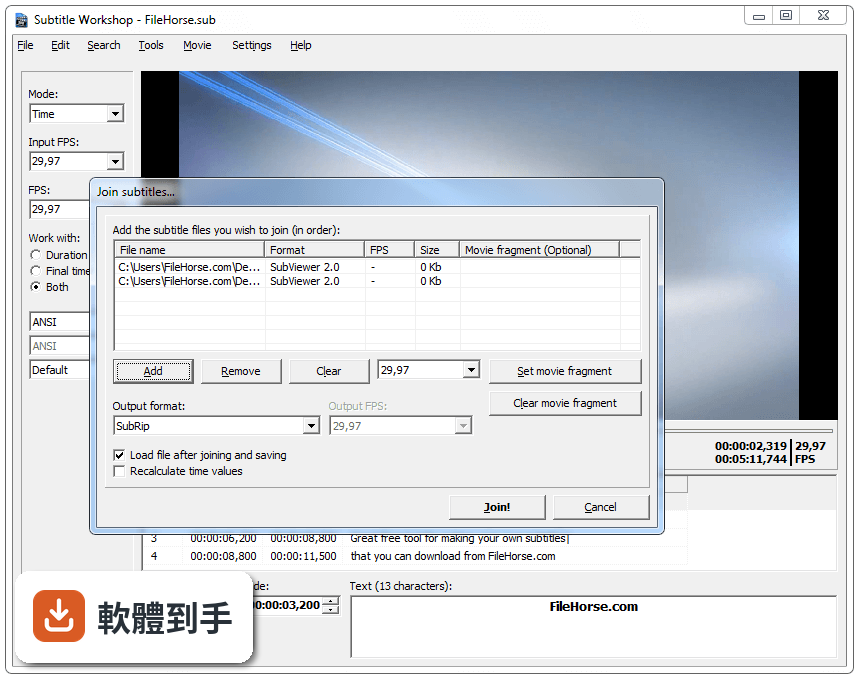
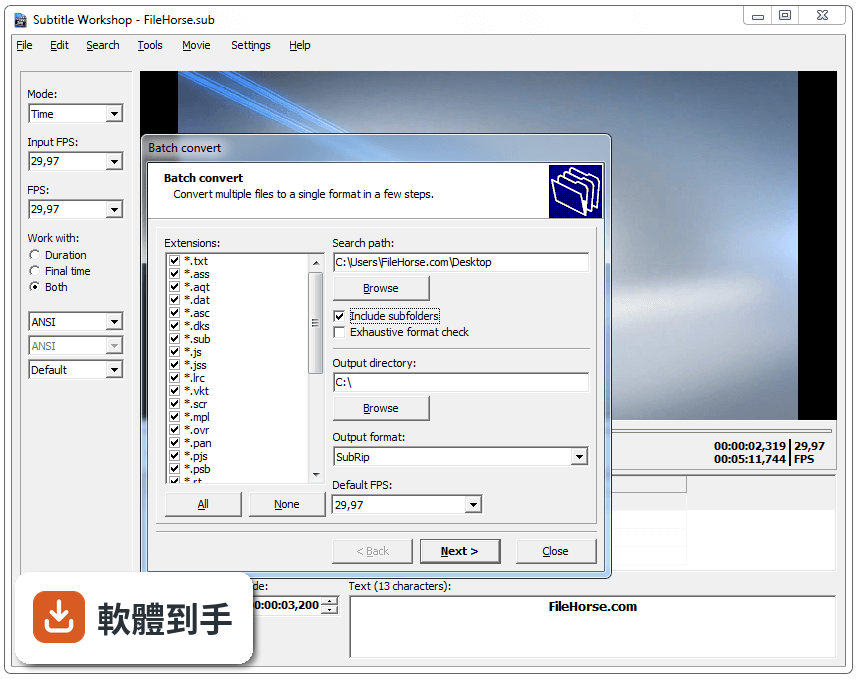
可以。它有批次轉換和批次處理功能,能一次轉換多個字幕檔,或對多個檔案套用相同的設定調整。這對手上有一批字幕要統一格式或修正時間軸的人來說,可以省下不少時間。
05能在軟體裡直接翻譯字幕嗎?
有基本的翻譯工具,可以並排編輯兩種語言的字幕版本。不過它提供的只是輔助功能,不是自動翻譯,翻譯內容還是要靠自己。如果要做雙語字幕,可以透過這個功能來對照編輯。
06這套軟體適合什麼樣的人用?
適合需要處理字幕的影片編輯者、翻譯人員和業餘愛好者。它的介面是傳統Windows風格,功能選項多,對有經驗的使用者來說操作直覺,但初學者可能需要一點時間熟悉。安裝檔不到10MB,安裝過程快速,不需要額外安裝第三方軟體。
07我的電腦跑得動嗎?
系統需求不高,Windows 7以上即可,記憶體最低512MB(建議1GB以上),處理器1GHz以上,硬碟空間不到20MB。以現在一般的電腦規格來說,跑起來沒有問題。它本身很輕量,不會佔用太多系統資源。
08介面只有英文,看不懂怎麼辦?
這套軟體的介面語系只有英文,沒有中文介面。如果英文閱讀有困難,使用上會比較吃力。不過功能選單和操作邏輯不算複雜,搭配線上論壇和文件教學,還是可以慢慢摸索。如果完全無法接受英文介面,可以考慮其他有中文支援的字幕編輯軟體。
09它還在持續更新嗎?
開發速度確實比較慢,但官方說明指出最新版本穩定,對多數使用情境來說功能完整。從版本紀錄來看,近一年有一次更新,近兩年有四次更新,屬於低頻率維護。如果追求頻繁更新或新功能,這套軟體可能不是最佳選擇。
10跟 Subtitle Edit 比起來,選哪個比較好?
Subtitle Edit 的使用者評分人數較多(201人),Subtitle Workshop 只有70人,樣本數有差距。兩者都是免費開源的字幕編輯工具,功能也相近。Subtitle Edit 有波形圖和頻譜圖支援,Subtitle Workshop 則強調輕量和超過60種格式支援。建議兩個都裝來試用,看哪個操作方式比較順手。
11它對新影片格式的支援好嗎?
官方說明提到,它支援多數常見影片格式,但部分較新的格式可能需要外部解碼器或播放器才能正常預覽。也就是說,如果影片格式比較新,可能要先安裝對應的解碼器,否則預覽功能會受限。這點在使用前要先確認。
12處理大型字幕檔會不會有問題?
官方說明提到,處理大型檔案時偶爾會出現問題。如果字幕檔很大,操作時可能要留意穩定性。另外它缺乏現代協作工具,如果需要在多人之間共同編輯字幕,這套軟體沒有提供相關功能。
下載與官方連結
SubtitleWorkshop_6.0_130814_installer.exe · 1.96 MB · 連結指向軟體原廠
版本紀錄
- 2026-10-18 Subtitle Workshop 6.3.8 228.7 MB
- 2026-09-23 Subtitle Workshop 6.3.7 7.17 MB
- 2026-09-08 Subtitle Workshop 6.3.6 12.21 MB
再看 5 筆
- 2026-05-26 Subtitle Workshop 6.3.5 7.15 MB
- 2025-02-24 Subtitle Workshop 6.3.4 13.05 MB
- 2024-11-29 Subtitle Workshop 6.3.3 13.11 MB
- 2024-09-09 Subtitle Workshop 6.3.2 27.34 MB
- 2024-08-06 Subtitle Workshop 6.3.1 27.33 MB
這一版改了什麼
What's new in this version:
GENERAL INTERFACE CHANGES:
- TOOLBAR added - (show/hide from "View: Toolbar"). Note that the "Undo" and "Redo" buttons offer a dropdown list with the last Undo/Redo actions, so you can Undo/Redo multiple actions at once.
- STATUSBAR added- (show/hide from "View: Statusbar"). Displays the current subtitles format and the number of the currently selected subtitle(s). Left mouse button click on the number centers the Subtitles List on the first (or only) selected subtitle. Right mouse button click on the number centers the Subtitles List on the last (or only) selected subtitle.
FULL TAGS SUPPORT MODE (Multiple Tags Mode) added - currently only for the SubRip, MicroDVD, and Sub Station Alpha formats. To enable it, select "Multiple tags mode" in "Settings: Settings: General". The subtitles in the Video Preview Panel are also properly formatted when using the Multiple Tags Mode. Tags that can be used while editing are:
- and - Bold text.
- and - Italic text.
- and - Underlined text.
- and - Text color.
- Always work with those tags in Subtitle Workshop. When saving the subtitle files, they are properly converted to the corresponding tags of the chosen format. Note that the MicroDVD format supports only tags for entire lines or subtitles, but not for separate words or characters.
- TEXT STYLE BARS added - (show/hide them from "View: Text style bars"). They consist of style tags buttons. They appear above the "Text" and "Translation" fields. They have similar behaviour to that of the Microsoft Word buttons.
- "PAUSE" editbox added - to display and set the pause between the current and the previous subtitle.
- "PAUSE" column added in the Subtitles List.
- "DURATION" column added in the Subtitles List.
- When you right-click the column titles ("Num", "Show", "Hide", "Text", "Translation", "Duration", or "Pause") of the Subtitles List, a new Subtitles List Header Context Menu pops up that allows you to show/hide the different columns.
- The columns positions are now automatically saved.
- When the "Text" and "Translation" columns positions are swapped, the "Text" and "Translation" fields are automatically swapped as well.
- When the "Show" column header in the Subtitles List is clicked, the "Sort" function ("Edit: Subtitles: Sort") is executed (subtitles are sorted by their Show Time).
- When the "Text" or "Translation" column header in the Subtitles List is clicked, the widths of the "Text" and "Translation" columns become equal.
- The values in the "Show", "Hide", "Duration", and "Pause" boxes can now be edited with the mouse scroll wheel, when you're inside those boxes. If you hold the CTRL key while scrolling, the decrease/increase value will be 10 times larger. If you hold the ALT key while scrolling, the decrease/increase value will be 2 times smaller. The increase/decrease step can be set in "Settings: Settings: General: Advanced". If you hold the SHIFT key while scrolling, the duration is not changed at all, but rather the subtitle is shifted in time (similar to using "Edit: Timings: Shift +N milliseconds" and "Edit: Timings: Shift -N milliseconds").
- When the mouse cursor is over one of the time boxes ("Show", "Hide", "Duration", or "Pause"), the corresponding time value can now be set by using the mouse scroll wheel, without entering (clicking in) the box. Subtitle Workshop indicates this by underlining the time value in the corresponding box. Using the CTRL and ALT, keys to modify the step, or the SHIFT key to shift the subtitle is possible.
- Pause, Show, Hide, and Duration values can now be changed in the Subtitles List with the mouse scroll wheel, when the corresponding cell is clicked and the left mouse button is held down while scrolling with the mouse scroll wheel. Using the CTRL and ALT, keys to modify the step is possible.
The following shortcuts are enabled for the Subtitles List:
- SHIFT + mouse scroll wheel - shift the currently selected subtitle(s) in time (like using "Edit: Timings: Set delay" for the selected subtitles, but easier).
- "S" + mouse scroll wheel - modify the Show Time of the currently selected subtitle(s).
- "D" (or "E") + mouse scroll wheel - modify the Hide Time of the currently selected subtitle(s).
- SAPCE - Mark or unmark the currently selected subtitle(s).
- "B" (or "O") - Set/unset Bold tag for the currently selected subtitle(s).
- "I" - Set/unset Italic tag for the currently selected subtitle(s).
- "U" - Set/unset Underline tag for the currently selected subtitle(s).
- "C" (or "Y") - Set/unset a Color tag (the last selected color in the color dialog) for the currently selected subtitle(s).
- BACKSPACE - Remove all tags for the currently selected subtitle(s).
- ENTER - Move the video to the Show Time of the focused subtitle. Also, start "in-place edition", if exactly one subtitle is selected and "in-place edition" is enabled. Also, save and exit "in-place edition".
- F2 - Start "in-place edition" / Save and exit "in-place edition".
- ESCAPE - Unselect all selected subtitles and leave only the focused subtitle selected. Or cancel edition in "in-place edition".
- LEFT/RIGHT - Change the focused column.
- PageUP/PageDOWN - Change the current subtitle in "in-place edition".
- TAB/SHIFT+TAB - Change the current column in "in-place edition".
- Right-click selection can be enabled in the Subtitles List (from "Settings: Settings: Look: List: Right click selection").
- "Insert subtitle", "Insert before", "Remove selected", and "Remove all tags" added to the Context Menu of the Subtitles List.
- When a subtitle with Bad Values is selected, it's duration is now displayed as 00:00:00,000 instead of 23:XX;XX,XXX.
- "OCR Scripts" checkbox added in the Left Panel for fast enabling/disabling of the OCR Script errors checking and fixing.
- "Notes" field added to the Left Panel of Subtitle Workshop (show/hide it from "View: Show notes in left panel"). The notes are global for the entire program and not dependant on the current subtitle file(s). Set the charset of the "Notes" field in "Settings: Settings: Charsets: Notes charset".
- Accurate charset conversion when using Paste operations.
- Select All, Cut, Copy, and Paste (and their shortcuts) now available for all textboxes, dropboxes, and other controls throughout Subtitle Workshop (e.g.: pressing CTRL+A ("Edit: Select all") in the "Text" or "Translation" fields selects the entire text in the filed now, not all subtitles in the Subtitles List).
- The width of the Time Controls Area and Text Controls Area can now be resized via a new horizontal splitter located between them.
- Four new time control buttons added in the Time Controls Area (show/hide from "View: Show time control buttons"). Each button has two functions - one when it's clicked with the left mouse button, and another when it's clicked with the right mouse button. The buttons' functions (their tooltips also indicate them) are as follows (left click function/right click function): "Move to Previous/Extend to Previous"; "Move to Next/Extend to Next"; "Set Default Pause/Set Default Pause, if Pause is too short"; "Set Auto Duration/Set Min Duration".
- Now, when no subtitles are selected in the Subtitles List, the "Show", "Hide", "Duration", and "Pause" boxes, the time control buttons, the "Text" and "Translation" fields, and the style tags buttons are disabled.
- Now, when two or more subtitles are selected in the Subtitles List, the values of the "Show", "Hide", "Duration", and "Pause" boxes are filled as follows: "Show" displays the Show Time of the first selected subtitle; "Hide" displays the Hide Time of the last selected subtitle; "Pause" displays the pause of the first selected subtitle; "Duration" displays the total duration of all subtitles (including the pauses between them).
- When two or more subtitles are selected in the Subtitles List, setting the same duration value for all selected subtitles by the "Duration" box is now possible.
- When two or more subtitles are selected in the Subtitles List, increasing/decreasing the duration of all selected subtitles is now possible by using the mouse scroll wheel on the "Duration" box. The same is also valid for the Show Time of all selected subtitles (using the "Show" box) and Hide Time of all selected subtitles (using the "Hide" box).
- When typing in the "Text" or "Translation" fields, one Undo entry is now added for an entire word, instead of for every single letter. However, if nothing is typed in for more than 2 seconds, a new Undo entry will be added the next time text is typed in.
- The program version number is displayed in the main window's caption.
- The taskbar caption of Subtitle Workshop now displays the name of the file first.
- Now, when a file is modified, that's indicated by an asterisk (*) in Subtitle Workshop's caption.
- New Context Menu added for the "Text" and "Translation" fields. It contains the following items: "Cut", "Copy", "Paste", "Delete", "Select all", "Italic", "Bold", "Underline", "Set color", "Remove color tags", "Remove all tags".
IN-PLACE EDITION:
- The Translation and the Show Time and Hide Time values can now be edited with "in-place edition".
- The Pause and Duration values can now be edited using "in-place edition".
- Time values can now be modified with the mouse scroll wheel when using "in-place edition".
- When using "in-place edition", the pop-up edition boxes now have the same alignment as the corresponding cell in the Subtitles List.
- System menu and Close button added to all modal windows.
- The color value of the Color Tag Dialog is now automatically saved.
VIDEO PREVIEW PANEL:
- Volume Control added - set the volume of the video.
- "Mute/Unmute" button added - mute or unmute the volume of the video.
- Full Screen Mode added. Toggle it with a left mouse button double click (if "Settings: Settings: Video preview: Enter Full Screen on double click" is enabled) or a middle mouse button single click on the Video Preview Panel, or through the new Video Preview Context Menu. In Full Screen Mode, the mouse cursor automatically hides in a few seconds if not used. While in Full Screen Mode, the video control buttons are in a hidden bar on the bottom of the screen. Move the mouse cursor to the bottom of the screen to display them, and move it away to hide them again. The "Settings: Settings: Video preview: Subtitles: Relative font size" option is recommended for Full Screen Mode. "Toggle Scroll List" is automatically turned on in Full Screen Mode (and if it was previously off, it is turned back off when you exit Full Screen Mode).
The following shortcuts are now available when the mouse cursor is over the Video Preview Panel:
- MOUSE WHEEL UP - Increase volume.
- MOUSE WHEEL DOWN - Decrease volume.
- MOUSE LEFT BUTTON DOUBLE CLICK - Toggle Full Screen Mode (if "Settings: Settings: Video preview: Enter Full Screen on double click" is enabled).
- MOUSE MIDDLE BUTTON CLICK - Toggle Full Screen Mode.
- In Full Screen Mode, the following shortcuts are enabled:
- SPACE - Mark/Unmark subtitle.
- CTRL+SPACE - Play/Pause.
- LEFT ARROW - Rewind.
- RIGHT ARROW - Forward.
- UP ARROW - Increase volume.
- DOWN ARROW - Decrease volume.
- ENTER - Exit Full Screen Mode.
- ESCAPE - Exit Full Screen Mode.
- "B" (or "O") - Set/unset Bold tag for the current subtitle.
- "I" - Set/unset Italic tag for the current subtitle.
- "U" - Set/unset Underline tag for the current subtitle.
- "C" (or "Y") - Set/unset a Color tag (the last selected color in the color dialog) for the currently selected subtitle(s).
- BACKSPACE - Remove all tags for the current subtitle.
- The vertical position of the subtitles in the Video Preview Panel can now be changed by dragging the subtitles up and down with the mouse. The default position can be restored through the Video Preview Context Menu.
- Video Preview Context Menu added - right click on the Video Preview Panel to display it.
- "Open..." - equivalent to "Movie: Open...".
- "Close" - equivalent to "Movie: Close".
- "Zoom to X%" - zooms the video to the corresponding per cent.
- "Enter Full Screen"/"Exit Full Screen" - enter/exit Full Screen Mode.
- "Aspect ratio" - set the aspect ratio the video will be displayed in.
- "Original" - set the original aspect ratio of the video file.
- "4:3" - set a 4:3 aspect ratio.
- "16:9" - set a 16:9 aspect ratio.
- "1.85:1" - set a 1.85:1 aspect ratio.
- "2.35:1" - set a 2.35:1 aspect ratio.
- "Video renderer" added - equivalent to "Movie: Video renderer".
- "Audio stream" - equivalent to "Movie: Audio stream".
- "Show subtitles" - equivalent to "Movie: Show subtitles".
- "Reset subtitles vertical position" - sets the default vertical position for the subtitles in the Video Preview Panel.
- "Information..." - equivalent to "Movie: Information...".
- Show Time and Hide Time values can now be set by clicking with the mouse on the Time Counter below the video. Clicking with the left mouse button will set the Show Time, clicking with the right mouse button will set the Hide Time. In addition, while the mouse button (left or right) is held down, the mouse scroll wheel can be used to further modify the corresponding (Show or Hide) time value.
- If the SHIFT key is held when setting the Show Time/Hide Time via clicking on the "Set Show Time"/"Set Hide Time" button or on the Time Counter, the Show Time/Hide Time will be set and then the subtitle will be shifted in time.
- If more than one subtitles are selected when setting the Show Time/Hide Time via clicking on the "Set Show Time"/"Set Hide Time" button or on the Time Counter, the Show Time of the first selected subtitle/the Hide Time of the last selected subtitle will be set and then all selected subtitles will be shifted in time accordingly.
- The Video Preview Panel height ratio (in relation to the Subtitles List) is now kept and automatically saved.
- When the mouse cursor is over the Volume Control, a tooltip with the current volume per cent is now displayed.
- The Time Counter below the video now displays the video time at the current mouse cursor position, when the mouse cursor is moved over the Seekbar.
- Now, when the video is paused, as the mouse cursor is moved over the Seekbar, the corresponding moment in the video is previewed.
- The Seekbar now contains color blocks for visual subtitle representation ("View: Visual subtitle representation" to show/hide them).
- Also see "Settings: Settings: Video preview" and "Settings: Settings: Video preview: Subtitles".
"FILE" MENU:
- The "Save as" window can be resized now.
- "Save Marking" added - save the subtitle marking in a SRF file (like in ViPlay). The SRF file is created in the same folder the current subtitles are in. The file is given the following name: + + (e.g. for C:SubRip.sub, C:SubRip.sub.srf is created). If a translation file is opened, a SRF file is saved for it too.
"VIEW" MENU (new menu):
- "Show left panel" and "Show time controls" moved here from the "Settings" menu.
- "Toolbar" - show/hide the new toolbar.
- "Show notes in left panel" - show/hide the new "Notes" field in the Left Panel.
- "Visual subtitle representation" - show/hide the color blocks for visual subtitle representation in the Video Preview Panel Seekbar.
- "Columns" added - select which columns to be displayed in the Subtitles List (equivalent to the Subtitles List Header Context Menu).
- "Show time control buttons" - show/hide the time control buttons in the Time Controls Panel.
- "Text style bars" - show/hide the new style tags buttons.
- "Show lines count" - show/hide labels above the "Text" and "Translation" fields, displaying the number of lines in the current subtitle.
- "Statusbar" - show/hide the new statusbar.
"EDIT" MENU:
- "Insert symbol..." added - a window from which symbols can be inserted in the "Text" or "Translation" fields (or even in the "Notes" field), depending on which field is focused.
- "Style" added - it contains the following items: "Italic", "Bold", "Underline", "Set color", "Remove color tags", "Remove all tags".
- "Invert selection" added.
"TIMINGS" MENU:
"Set duration limits...":
- A new option "Increase at start if necessary" added - if the desired duration is not achieved by increasing the Hide value of the subtitle, the Show value is decreased. The subtitle will show up earlier, but it will eventually have the desired duration.
"Set delay":
- Window modified - "+"/"-" dropdown box replaced with more convenient radio buttons. Mouse scroll wheel can be used to set the value. The PLUS and MINUS keys can be used to set "+"/"-".
- A new option "From first selected until last subtitle" added - applies the delay for all subtitles from the first selected subtitle until the last subtitle.
- "Extend length" renamed to "Extend length to next".
- "Extend length to previous" added - set the Start time of the current subtitle just after the End time of the previous one (similar to "Extend length").
- "Shift to next" added - shifts the selected subtitle(s) to the next subtitle.
- "Shift to previous" added - shifts the selected subtitle(s) to the previous subtitle.
"Automatic Durations":
- A new option "Increase at start if necessary" added - if the desired duration is not achieved by increasing the Hide value of the subtitle, the Show value is decreased. The subtitle will show up earlier, but it will eventually have the desired duration.
- "Set Pauses" added - sets the pauses between subtitles. Set the pause value and the applied method in the window that pops up.
- "Round Time Values..." added - rounds all the time values to a selected value.
- A new ("CPS") method added in "Automatic Durations".
"TEXTS" MENU:
- "Smart Line Adjust" added - works like the old "Smart Line Adjust" (now called "Fast smart line adjust"), but has some additional settings - it can break the text on dialogue dashes and punctuation marks ("Break on punctuation marks" method); it can be set not to unbreak subtitles with the "Don't unbreak subtitles that are not too long" option (e.g. this: "Hello.|How are you?" will NOT be changed to "Hello. How are you?"); it can be set not to modify normal subtitles with the "Adjust only long subs and subs with more than 2 lines" option (e.g. this: "What do you think|for my new lovely collection?" will NOT be changed to "What do you think for my|new lovely collection?"), which preserves the original look of those subtitles and doesn't break their readability. If the "Always try to find a better breaking point" option (for the "Break on punctuation marks" method) is checked, Subtitle Workshop will always try to find a better break point; if it's not checked - Subtitle Workshop will try to find a better break point only if the previous break point is not a punctuation mark already.
- "Unbreak subtitles" added - works like the old "Unbreak subtitles" (now called "Fast unbreak subtitles"), but has some additional settings - you can set a maximum line length ("Don't unbreak if line length exceeds"), and set it not to unbreak subtitles with dialogue ("Don't unbreak subtitles with "-" on second line").
- Old "Smart line adjust" renamed to "Fast smart line adjust".
- Old "Unbreak subtitles" renamed to "Fast unbreak subtitles".
"SUBTITLES" MENU:
- "Auto Combine Subtitles" added - a new function to automatically combine short subtitles. You can set which subtitles should be considered for combining by setting a maximum duration and a minimum CPS. The most important option is the "Punctuation marks detection" - when this option is turned on, the function will combine only lines of the same person (judging by the punctuation marks), so you won't have to add dialogue dashes afterwards. If you don't care whether the lines of different characters are divided by dialogue dashes or not (not recommended), turn it off.
- "Combine if duration is less than" - combine only subtitles that have a duration less than this value.
- "Combine if CPS is greater than" - combine only subtitles that have more CPS than this value.
- "Don't combine if pause is greater than" - don't combine two subtitles, if the pause between them is greater than this value.
- "Punctuation marks detection" - combine only lines of the same character (judging by the punctuation marks: e.g. if the first subtitle ends on a comma or on no punctuation mark, the second subtitle is a line of the same character; if the first subtitle ends on a dot, a question mark or an exclamation mark, the second subtitle MIGHT be a line of a different character, so the two subtitles won't be combined).
- "Combined subtitles maximum duration" - when the two subtitles are combined, the resulting subtitle's duration shouldn't exceed that value.
- "Decrease duration if necessary with no more than" - if the above value is exceeded, decrease the duration a bit (set how much with this value) and check again.
- "Combined subtitles maximum line length" - maximum line length of the combined subtitle.
- "Delete dots at the beginning" added - deletes dots in the beginning of every subtitle (unlike "Delete unnecessary links" it doesn't delete the dots in the end of the subtitles and doesn't consider them at all).
- "Delete unnecessary links":
- It now detects more dots types (not just three, but two or more than three dots), and also ignores spaces between them.
- "Jump to next marked" added - jump to the next marked subtitle.
- "Jump to previous marked" added - jump to the previous marked subtitle.
- "TOOLS: INFORMATION AND ERRORS" MENU:
- "Show CPS boxes" added - show/hide CPS Infoboxes for each subtitle. See the changes in "Tools: Information and errors: Settings: Advanced" for more information.
- "Jump to next error":
- It can now jump from the last error to the first.
- "Jump to previous error" added.
- "INFORMATION AND ERRORS..." WINDOW (extended with multiple new functions and indicators):
- The Info&Errors Window is no longer modal (can stay opened at all times). All the information in it is automatically refreshed when changes occur in the Main Window if the "Tools: Information and Errors: Settings: Automatically recheck errors" is checked (currently this slows down the speed of Subtitle Workshop a little bit, so only keep the "Information and Errors" window opened when really necessary).
- The Info&Errors Window can be resized now, and the Info&Errors List columns' widths resize automatically.
- The Info&Errors List can now be sorted by every column.
- The total number of errors and fixed errors are now in a separate label, always visible.
- New "E" (Errors), "W" (Warnings), "F" (Fixed), and "CI" (Custom info) buttons added - they show or hide the corresponding type of information in the Info&Errors List.
- New "" buttons added - they jump to the previous / next row in the Info&Errors List.
- New "Select" button added - selects all subtitles in the Main Window that are currently in the Info&Errors List.
- New "+ Select" button added - adds to the current selection in the Main Window all subtitles that are currently in the Info&Errors List.
- New "- Select" button added - removes from the current selection in the Main Window all subtitles that are currently in the Info&Errors List.
- New "Export to file" button added - exports the Info&Errors List content to a text file.
ERROR TYPES AREA (new area):
- This area can be shown/hidden with the new "Error types" button.
- This area contains a list of all error types and how many of each of them the current subtitle file contains.
- The checkbox in front of each error type will show/hide all instances of this error type in the Info&Errors List. The "All" button checks them all, the "None" button unchecks them all, and the "Inverse" button makes an inverse selection.
- The current state of the checkboxes can be saved in an Error Types Set under an assigned name. This way it is easy to switch between different sets of states. The desired name of the Error Types Set must be entered in the dropdown box and the ENTER key or the "Save error types set" button must be pressed to save an Error Types Set. An Error Types Set can be loaded by selecting it from the dropdown box. An Error Types Set can be deleted by loading it and then clicking on the "Delete error types set" button.
CUSTOM INFO AREA (new area):
- This area can be shown/hidden with the new "Custom info" button.
- Here, different specific rules can be set to look for certain subtitles. The subtitles that fit those rules will be displayed in the Info&Errors List as "Custom info" types of rows, and with a description containing the rule or the rule's caption.
- There are no Custom info fields at first. Add a new field with the "+" button or with its dropdown menu. The following Custom info rule types are available:
a) "Composite custom info" (default when you press the "+" button): look for subtitles that fit several rules simultaneously:
- When a "Composite custom info" is added, a new window - the Composite Custom Info Window - appears where all the Composite custom info's sub-rules can be set. Enter the name of the Composite custom info in the "Caption" field. With a Composite custom info, Subtitle Workshop can look for subtitles that fit several rules simultaneously. Those rules can be the same as the other Custom info rule types ("Duration", "Line length", "Line count", "Pause", "CPS", and "Text" - see their description below). Add new subrules with the "+" button.
- Example: To find all subtitles that have two lines and a duration less than 1.5 seconds, add a "Composite custom info" with the "+" button. Enter a name for this rule in the "Caption" field. Click on the "+" button in the Composite Custom Info Window below and add a "Subtitles duration information" subfield, and after its "" sign enter the number 1, after its "" - greater than, and "